If you’ve missed playing old-school Windows games, look no further. There is a method (albeit a tedious one) to get your iPad to run Windows 3.1, thanks to a handy app called iDOS.
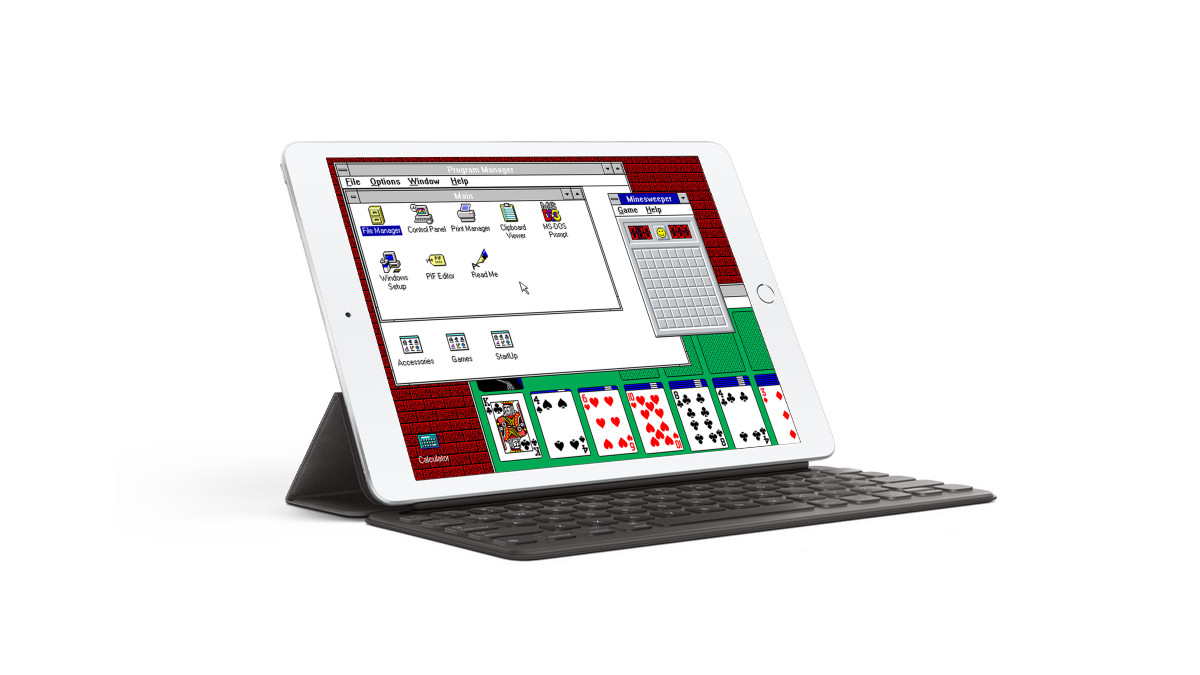
iDOS is an emulator created to let users play classic DOS (Disk-Operating System) games on their devices.
While iDOS was primarily created for gaming, users can also use the app for word processing and casual programming.
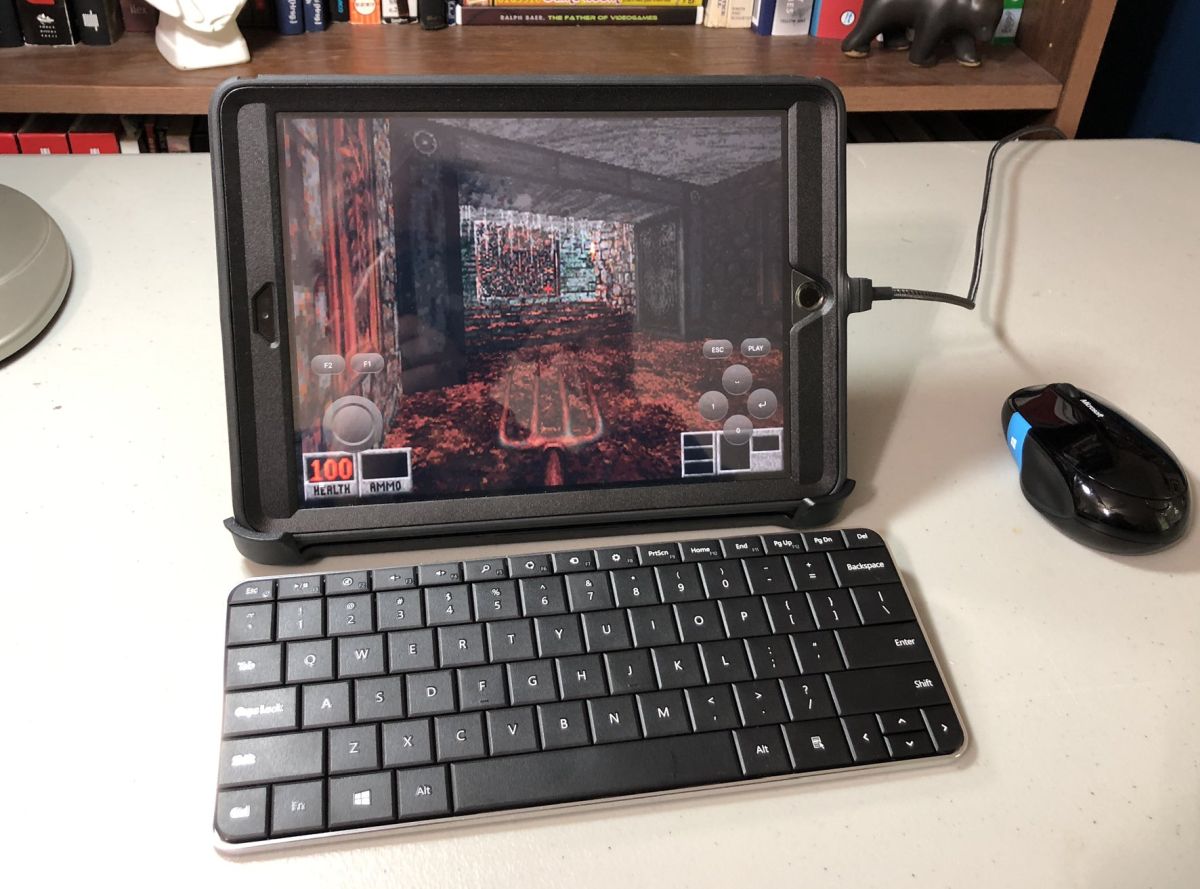
The app offers a PC-friendly on-screen keyboard complete with well designed layouts to suit different devices and orientations. There’s also a sliding feature in landscape mode for greater screen control. If your device runs on iPadOS 13 onwards, you’ll be able to pair a Bluetooth keyboard.
It also provides a virtual gamepad with customisable bindings, which can also be toggled into a joystick. The screen area also serves as a trackpad for a moving mouse pointer, complete with on-screen mouse buttons. Much like the keyboard, you can opt to pair a Bluetooth mouse if your iPad device is operating on iPadOS 13+.
To get the classic Windows experience, first you’ll need to download iDOS 2 on the App Store, priced at RM19.90.
After the download is complete, run the app on iPad to let it create an “iDOS” folder under the “On My iPad” section in Files.
The next important step is getting a Windows 3.1 disk file. You may either copy all the files off the installation floppy disks if you have them, or you can download the disk images online at your own risk.
Once the files are procured, transfer them to your iPad’s Files app, into the iDOS folder created earlier. Once the Windows 3.1 files are in, you should be able to install it. Set a custom name for the directory folder as you’ll need to type it in to initiate the installation.
Assuming all the contents of the installation disk are present, you can launch iDOS 2 and add “\setup” behind the custom name you set for the directory folder at the C : \ > prompt and hit Enter. A blue “Welcome to Setup” screen should appear.
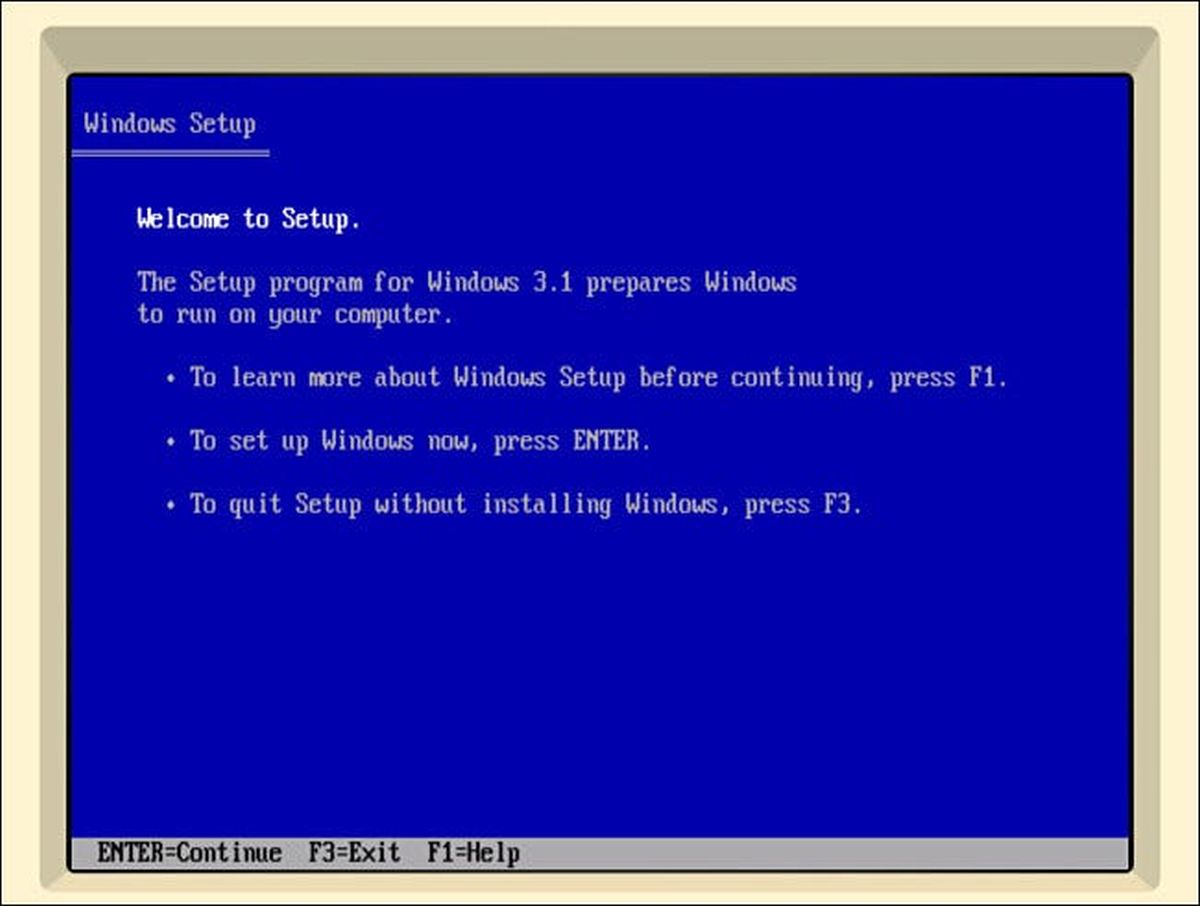
Select “Express Setup” and press Enter again, to have the directory files copied into a new directory called C:\WINDOWS. Shortly, you will be able to see the nostalgic Windows 3.x graphical installation, before being asked to key in your name.
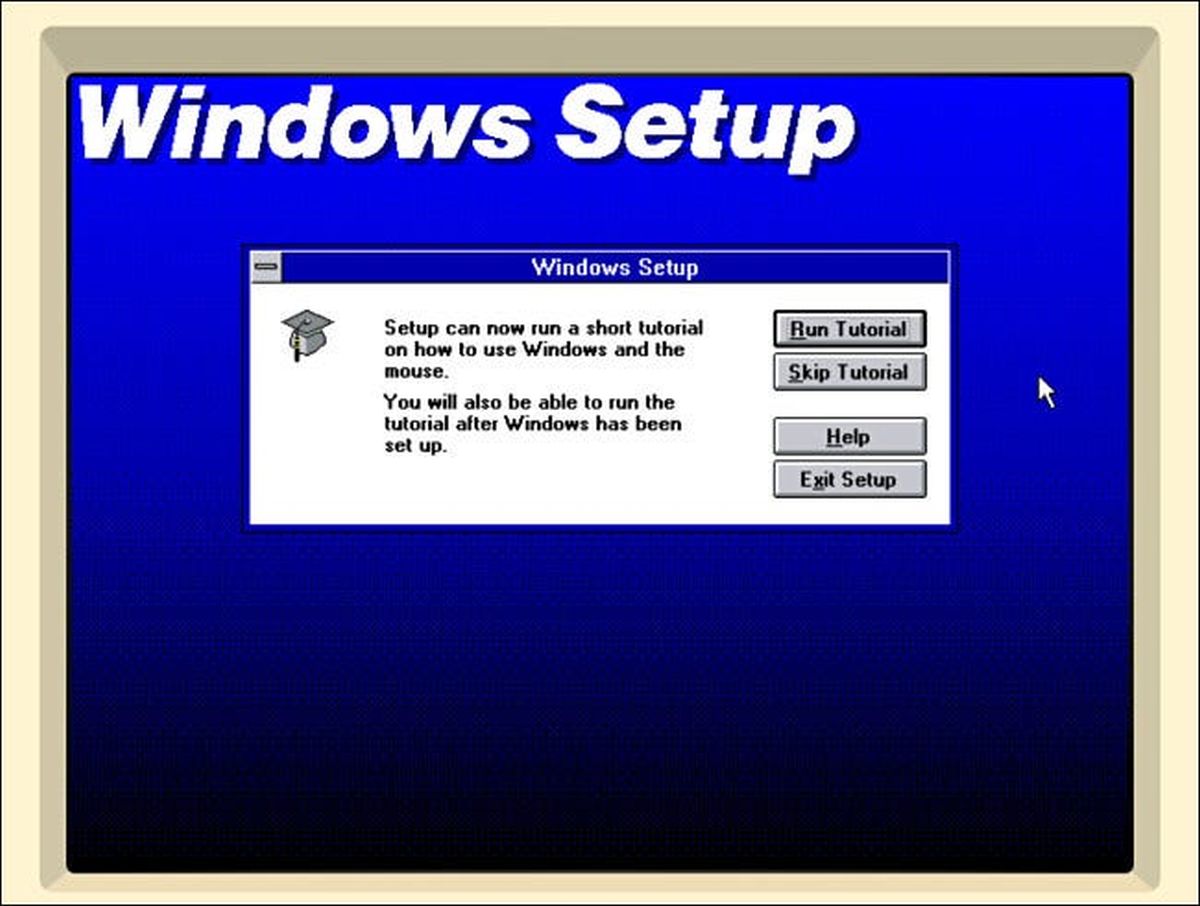
Next, you’ll be asked to pair a printer so you may select “No Printer Attached” and hit “Install”. To save time, you should also click the “Skip Tutorial” button. When installation is complete, you will see an “Exit Windows Setup” pop-up, this isn’t a real Windows so you’ll need to force-quit iDOS 2 and reopen it again.
Once iDOS 2 is launched, type “win” at the C:\> prompt and hit Enter. The classic splash screen will appear and you can officially begin the Windows 3.1 experience on your iPad.
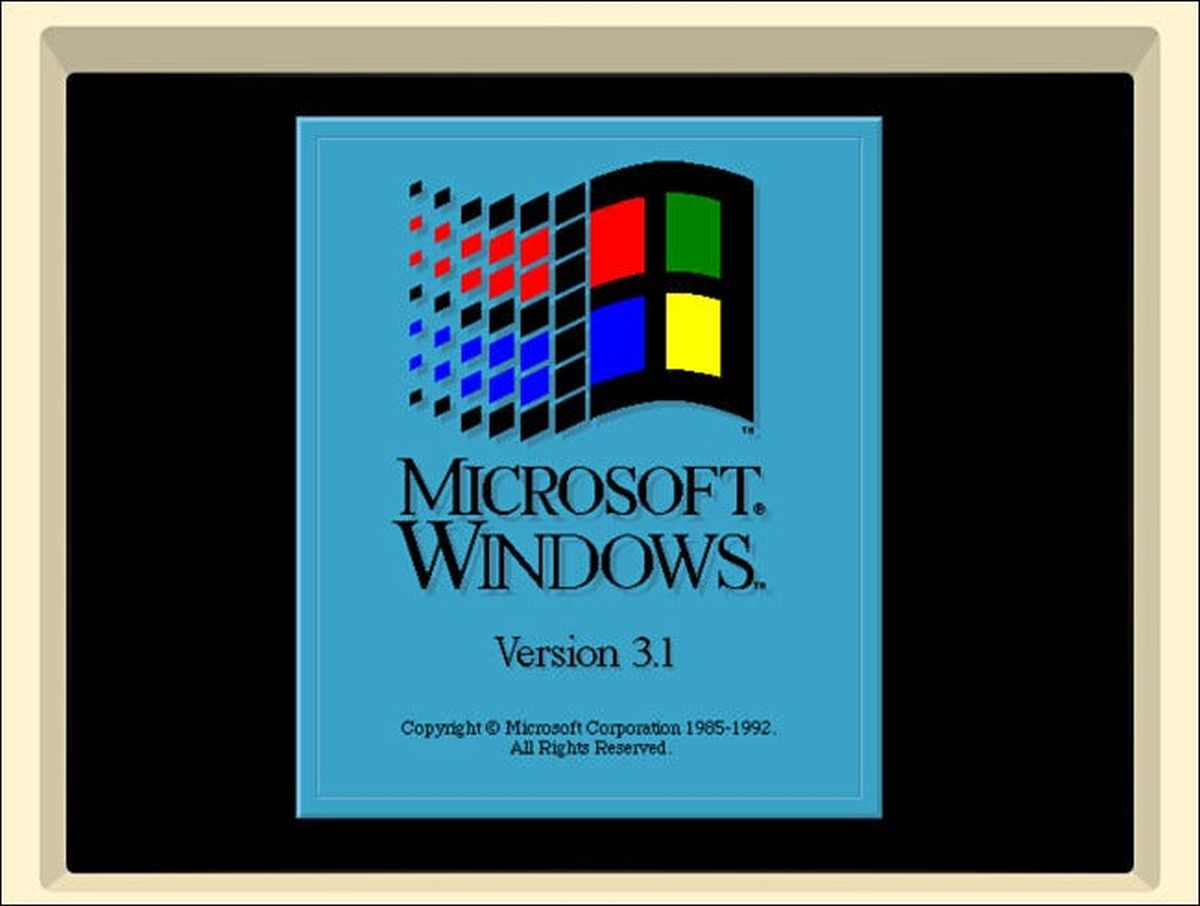
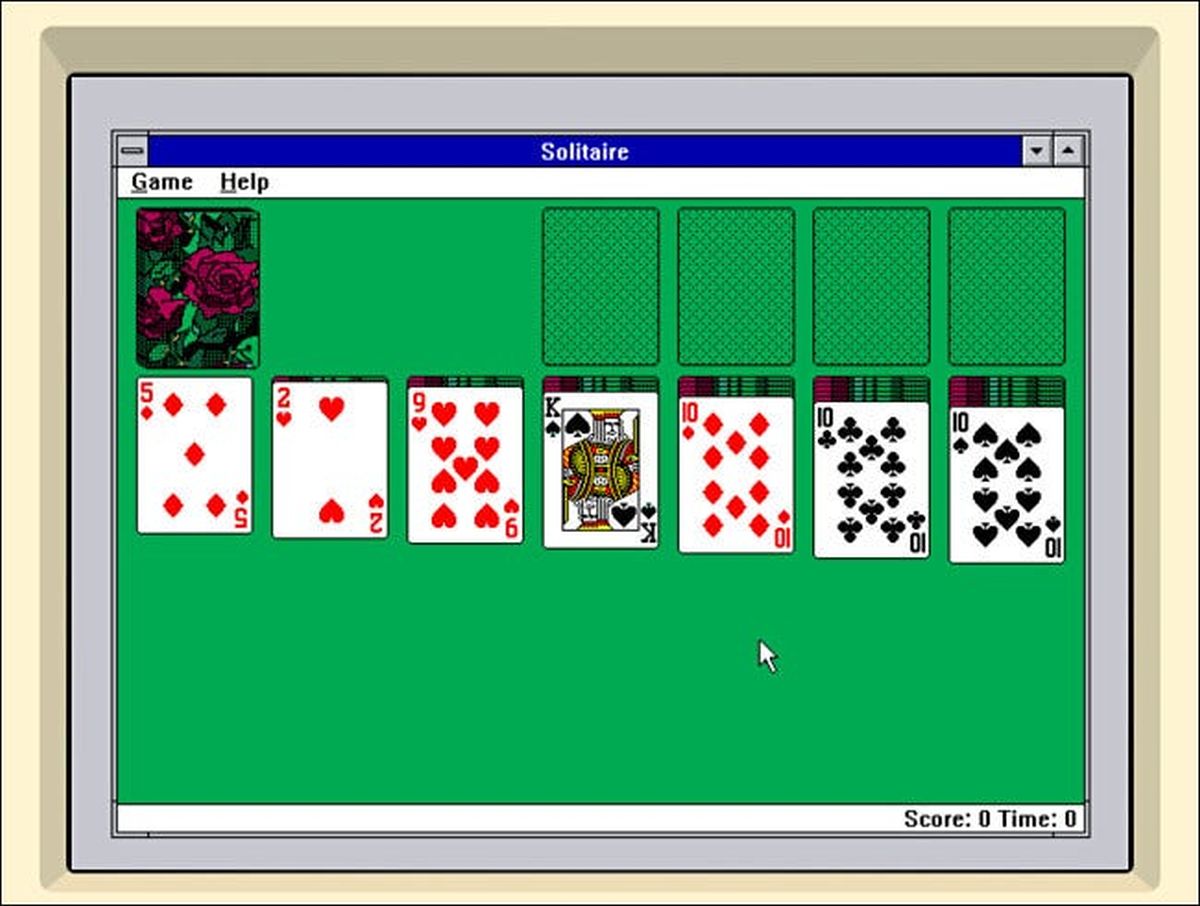
With that, you’ll be able to play Minesweeper, Solitaire or even launch the classic Paint. Though you should know that you’ll need to download a DOS sound driver since Windows 3.1 won’t play audio on your iPad. To install the driver, extract the ZIP file to a folder named “sb” and copy it to the iDOS directory in the Files app.
To download more Windows 3.1 software and games, you can visit this website on the Internet Archive, where you can test them out on your browser before deciding to download. However, you’ll need to download the desired game as a ZIP on a Mac or PC, extract it to its own folder (keep the name below 8 characters) and copy it to the iDOS folder on your iPad.
Once you load up Windows 3.1, you can select File > New > Program Item under the Program Manager. Browse the game’s directory and choose the main EXE or COM file.
You can even get Windows 3.1 on your iPhone so long as it it running iOS 9.0 or newer. If an iPhone or an iPad isn’t cutting it, iDOS is also compatible with M1-bearing MacBooks running mac OS 11.0 or later.
[SOURCE, 2, IMAGE SOURCE, 2]