• 中文版
  • BM
  • News
  • Deals
  • Reviews
    • First Impressions
    • Hands-on
    • Comparisons
  • Tech
    • Mobile
    • Computers
    • Cameras
    • Wearables
    • Audio
    • Drones
  • Telco
    • Celcom
    • Digi
    • Maxis
    • Time
    • Tune Talk
    • U Mobile
    • Unifi
    • Yes
  • Cars
  • Contribute
  • Jobs
Menu
  • 中文版
  • BM
  • News
  • Deals
  • Reviews
    • First Impressions
    • Hands-on
    • Comparisons
  • Tech
    • Mobile
    • Computers
    • Cameras
    • Wearables
    • Audio
    • Drones
  • Telco
    • Celcom
    • Digi
    • Maxis
    • Time
    • Tune Talk
    • U Mobile
    • Unifi
    • Yes
  • Cars
  • Contribute
  • Jobs
Search
  • Tech
    • News
    • Mobile
    • Computers
    • Cameras
    • Wearables
    • Audio
    • Drones
  • Telco
    • Celcom
    • Digi
    • Maxis
    • Time
    • U Mobile
    • Unifi
    • Yes
  • Reviews
    • First Impressions
    • Hands-on
    • Comparisons
  • Buyer’s Guide
  • Opinions
  • Digital Life
  • Video
  • Deals
  • How-To
  • Cars
  • Bahasa Melayu
  • EV
  • Contribute
  • Advertise
Menu
  • Tech
    • News
    • Mobile
    • Computers
    • Cameras
    • Wearables
    • Audio
    • Drones
  • Telco
    • Celcom
    • Digi
    • Maxis
    • Time
    • U Mobile
    • Unifi
    • Yes
  • Reviews
    • First Impressions
    • Hands-on
    • Comparisons
  • Buyer’s Guide
  • Opinions
  • Digital Life
  • Video
  • Deals
  • How-To
  • Cars
  • Bahasa Melayu
  • EV
  • Contribute
  • Advertise
Search
Close
Home News

Microsoft uses your device to seed Windows 10 Updates. Here’s how to disable it

  • BY Arif Lee
  • 3 August 2015
  • 5:57 pm
  • Comment
Share on FacebookShare on Twitter

150730-Microsoft-Windows-10-05

Have you noticed a recent spike in your data usage? Is your data reaching its cap for no reason? Upgrading to Windows 10 might be the problem. A thread on Reddit has brought us to the attention of Windows automatically using your PC to seed Windows updates to the world. Yes, the whole world. This issue will pose problems especially to those with home internet packages that are capped with a fixed high-speed download quota.

So how do you disable or limit this seeding in particular? You have three options that you are free to choose from: disable seeding entirely, limit to computers in your local network (one internet connection source only, like your house) or leave it as it is. Luckily Windows allows this and users can follow this step by step tutorial below:

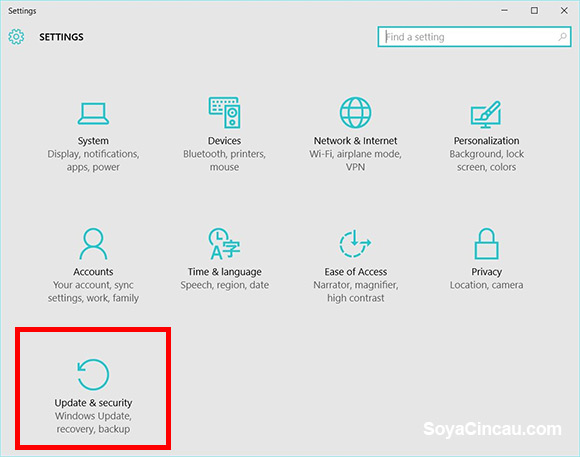
1. Go to Settings > Update & Security
150803-how-to-disable-windows-10-update-seeding-01

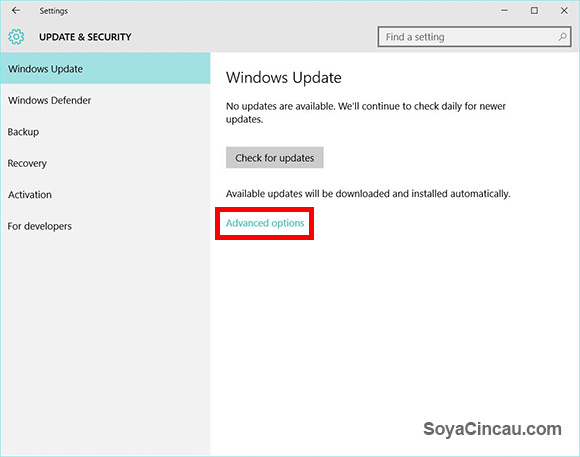
2. Windows Update > Advanced Options

150803-how-to-disable-windows-10-update-seeding-02

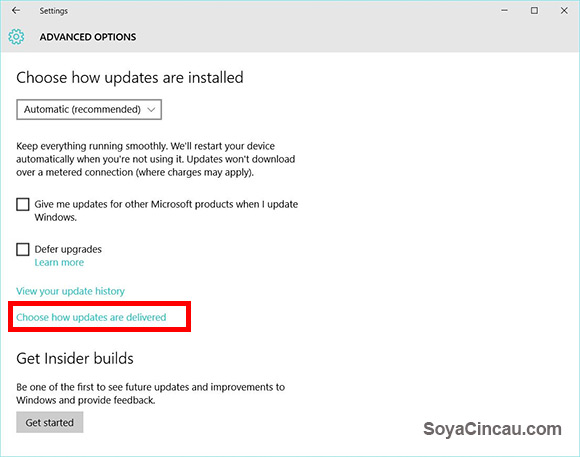
3. From advanced options go to “Choose how updates are delivered”
150803-how-to-disable-windows-10-update-seeding-03

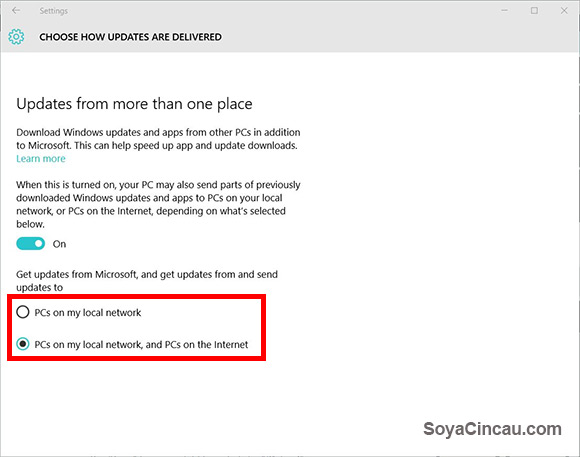
4. From “Choose how updates are delivered” you can choose the following options: Turn off P2P transfer entirely or limit to transfer to PCs on your local network.
150803-how-to-disable-windows-10-update-seeding-04

Hope this mediates any unwanted data cap shocks for all Windows 10 users.

[ SOURCE ]

Tags: Download Windows 10launchmicrosoftMicrosoft WindowsMicrosoft Windows 10operating systemUpgrade Windows 10WindowsWindows 10Windows 7Windows 8Windows 8.1
Arif Lee

Arif Lee

POPULAR

Tune Talk introduces #TheRealTuney campaign, highlights focus on all-day Ultra Fast 5G Connectivity for 2026

January 23, 2026

Microsoft uses your device to seed Windows 10 Updates. Here’s how to disable it

August 3, 2015

Is your TNG eWallet suspended? Here’s what you should do

January 27, 2026
Perodua QV-E at Perodua Glenmarie

Less than 40 registered in 2025: What’s next for Perodua’s first EV? | Let’s Talk About #136

February 9, 2026

Gentari Go introduces two new EV subscription plans, from RM350/year

February 11, 2026

Top 5 OnePlus smartphones: Looking back at a once-beloved enthusiast brand

February 9, 2026

Copyright © 2025 · SoyaCincau.com
Mind Blow Sdn Bhd (1076827-P)

  • ADVERTISE
  • DISCLAIMER

Copyright © 2026 · SoyaCincau.com – Mind Blow Sdn Bhd (1076827-P)

  • ADVERTISE
  • DISCLAIMER