• 中文版
  • BM
  • News
  • Deals
  • Reviews
    • First Impressions
    • Hands-on
    • Comparisons
  • Tech
    • Mobile
    • Computers
    • Cameras
    • Wearables
    • Audio
    • Drones
  • Telco
    • Celcom
    • Digi
    • Maxis
    • Time
    • Tune Talk
    • U Mobile
    • Unifi
    • Yes
  • Cars
  • Contribute
  • Jobs
Menu
  • 中文版
  • BM
  • News
  • Deals
  • Reviews
    • First Impressions
    • Hands-on
    • Comparisons
  • Tech
    • Mobile
    • Computers
    • Cameras
    • Wearables
    • Audio
    • Drones
  • Telco
    • Celcom
    • Digi
    • Maxis
    • Time
    • Tune Talk
    • U Mobile
    • Unifi
    • Yes
  • Cars
  • Contribute
  • Jobs
Search
  • Tech
    • News
    • Mobile
    • Computers
    • Cameras
    • Wearables
    • Audio
    • Drones
  • Telco
    • Celcom
    • Digi
    • Maxis
    • Time
    • U Mobile
    • Unifi
    • Yes
  • Reviews
    • First Impressions
    • Hands-on
    • Comparisons
  • Buyer’s Guide
  • Opinions
  • Digital Life
  • Video
  • Deals
  • How-To
  • Cars
  • Bahasa Melayu
  • EV
  • Contribute
  • Advertise
Menu
  • Tech
    • News
    • Mobile
    • Computers
    • Cameras
    • Wearables
    • Audio
    • Drones
  • Telco
    • Celcom
    • Digi
    • Maxis
    • Time
    • U Mobile
    • Unifi
    • Yes
  • Reviews
    • First Impressions
    • Hands-on
    • Comparisons
  • Buyer’s Guide
  • Opinions
  • Digital Life
  • Video
  • Deals
  • How-To
  • Cars
  • Bahasa Melayu
  • EV
  • Contribute
  • Advertise
Search
Close
Home Digital Life Apps

How to transfer your WhatsApp chat history from iPhone to your new Samsung Galaxy device

  • BY Redza Dzafri
  • 9 September 2021
  • 4:45 pm
  • Comment
Share on FacebookShare on Twitter

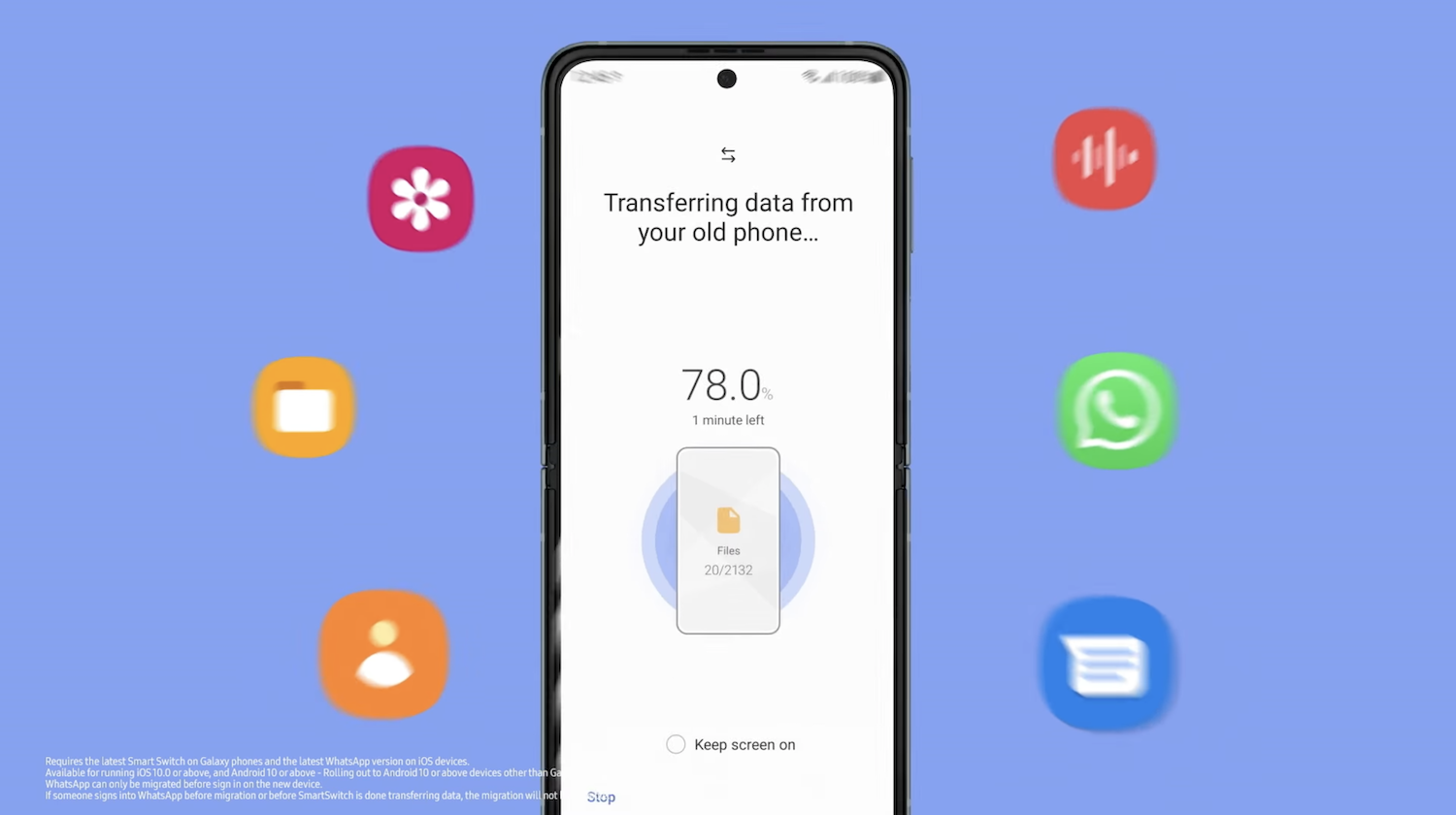
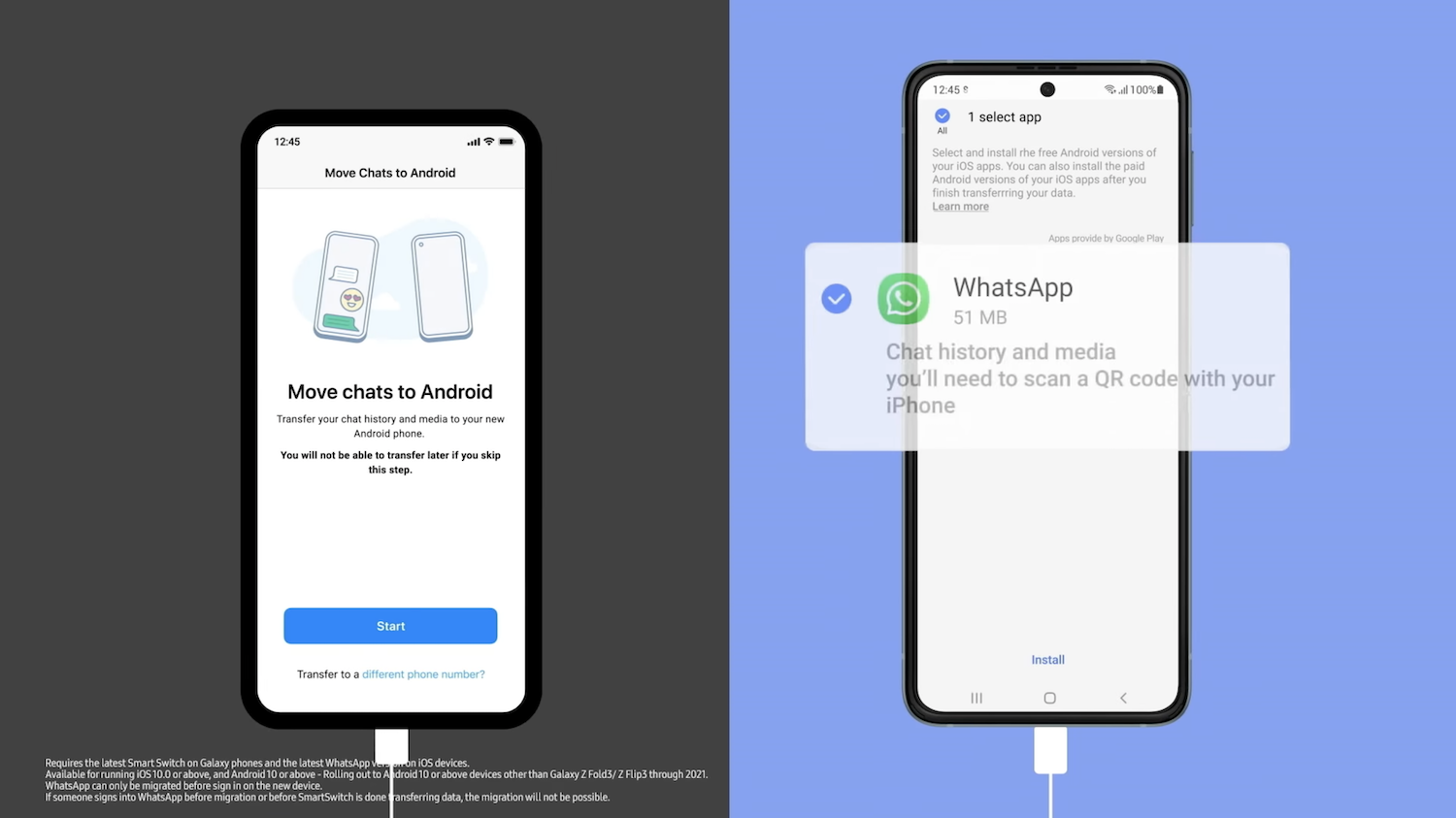
Samsung presented the WhatsApp chat migration feature at the recent Galaxy Unpacked event, allowing users to transfer their WhatsApp chat history from an iPhone to a new Samsung device. Before this, it only worked with the new foldable phones, but WhatsApp finally enabled the feature for Samsung Galaxy devices in general.

This feature preserves the end-to-end encryption and moves your entire WhatsApp chat history, including account information, voice notes, media, photos, settings and your profile photo from your iPhone to your new Samsung device. Unfortunately, call history cannot be transferred from an iPhone to a Samsung device.
Source: Samsung Galaxy Unpacked

In a recent blog post launching the feature, WhatsApp wrote:

“We’re excited to start rolling out the ability to move your WhatsApp history from iOS to Android. This happens without your messages being sent to WhatsApp in the process and includes voice messages, photos and videos. To start, this feature is available on any Samsung device running Android 10 or higher, and will be available on more Android devices soon.”

Source: WhatsApp

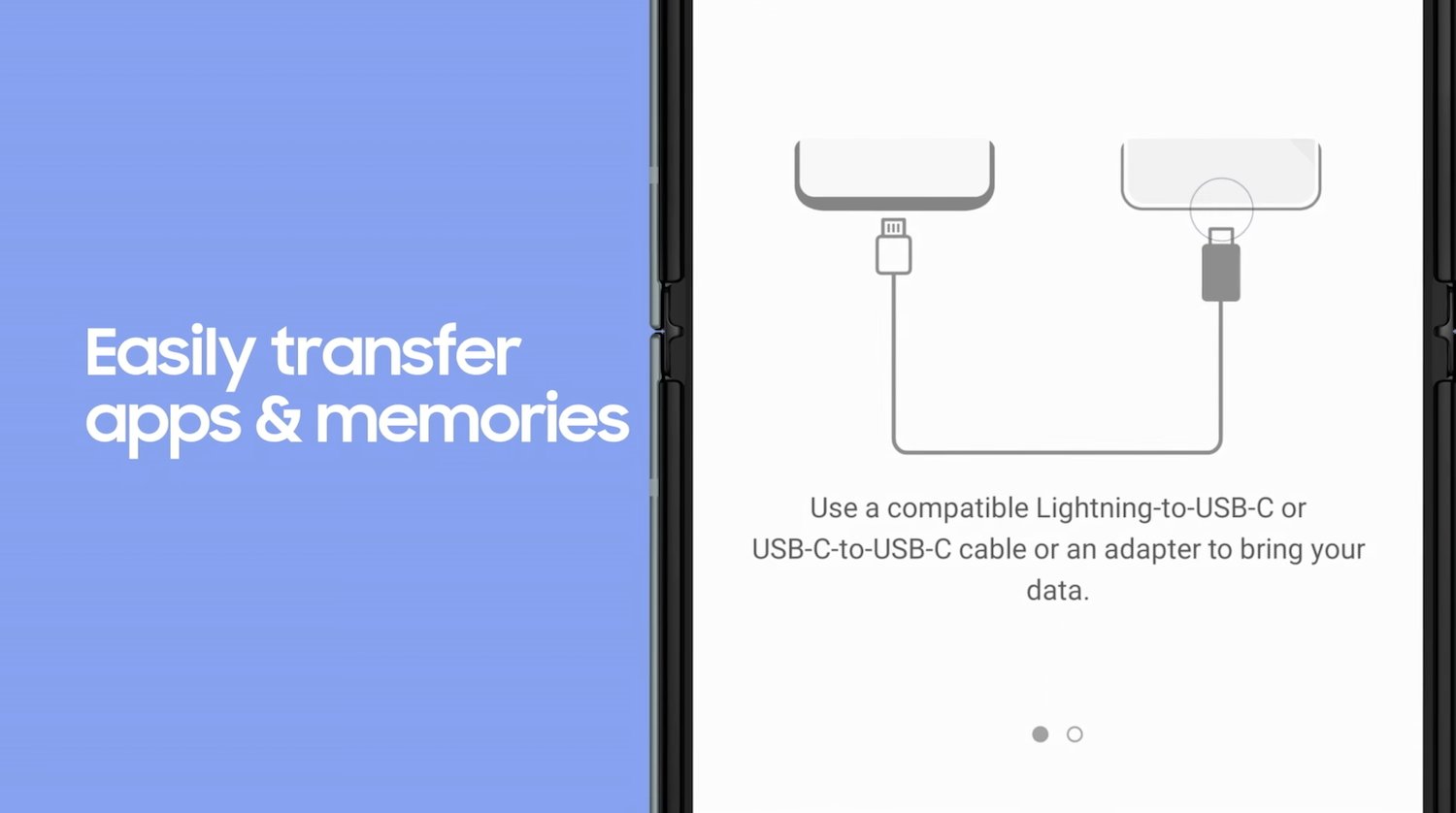
To do this, you do need a USB-C to Lightning cable (or equivalent adapters) to connect the two devices, as it cannot be done over the cloud. This is because WhatsApp uses different cloud backup formats for both Android and iOS, and also because it uses on-device encryption which makes it difficult to transfer data over the cloud. The cable transfer ensures that even WhatsApp cannot see the data you transfer.
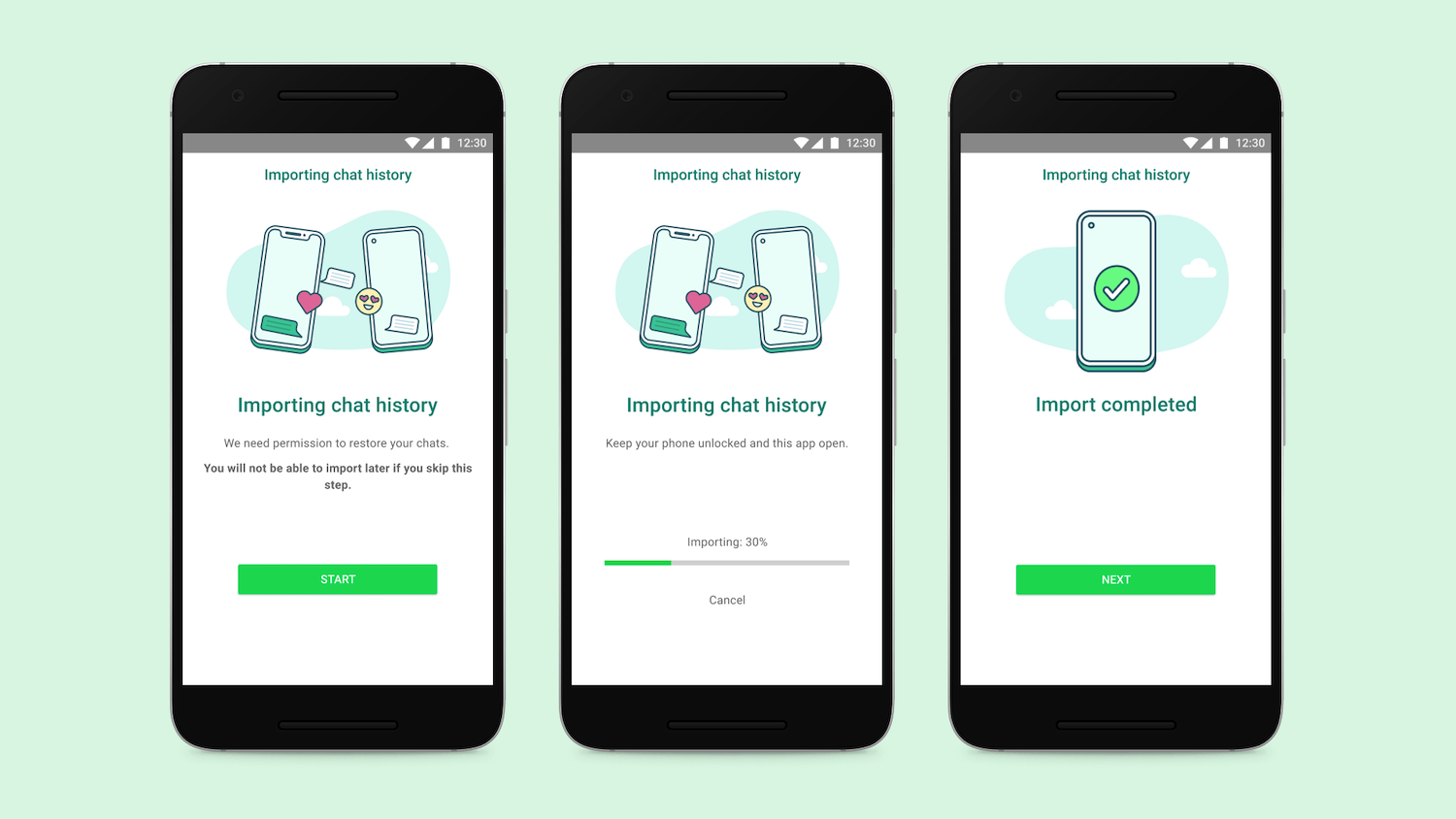
Just follow these steps and you’re well on your way to using WhatsApp again on your Samsung device.

  1. Turn on your new Samsung Galaxy smartphone and connect by cable to your iPhone when prompted.
  2. Follow the Samsung Smart Switch experience.
  3. When prompted, scan the QR code displayed on the new device using the iPhone’s camera.
  4. Tap Start on your iPhone, and wait for the process to complete.
  5. Continue setting up your new Samsung.
  6. When you reach the home screen, open WhatsApp and log in using the same phone number used on your old device.
  7. Tap Import when prompted, and allow the process to complete.
  8. Finish activating your new device and you’ll see your chats waiting for you.

Keep in mind that your devices need to have certain specifications to use this feature:

  • Your new Android device must be factory new or reset to factory settings.
  • Samsung SmartSwitch app version 3.7.22.1 or greater on your new device.
  • WhatsApp Android Version 2.21.16.20 or greater on your new device.
  • WhatsApp iOS version 2.21.160.17 or greater on your old device.
  • Same phone number on the new device as the old device.

[ SOURCE, IMAGE SOURCE ]

Tags: iPhoneSamsungWhatsapp
Redza Dzafri

Redza Dzafri

POPULAR

How to transfer your WhatsApp chat history from iPhone to your new Samsung Galaxy device

September 9, 2021

Small Steps, Daily Rewards: Exploring the Maybank Tabung Daily Bonus Campaign

May 28, 2026
Photo by Vitaly Gariev

Countdown to Kickoff: Unifi TV Brings All 104 FIFA World Cup 2026 Matches Live in HD

June 11, 2026

Zeekr X 2026 now open for booking in Malaysia, comes with automatic doors and built-in fridge

June 9, 2026

We’ve been accepting broken laptop designs for 20 years. Here’s what finally changed

June 9, 2026

KLIMS 2026: Malaysia’s premier mobility extravaganza promises more than just car showcase

June 10, 2026

Copyright © 2025 · SoyaCincau.com
Mind Blow Sdn Bhd (1076827-P)

  • ADVERTISE
  • DISCLAIMER

Copyright © 2026 · SoyaCincau.com – Mind Blow Sdn Bhd (1076827-P)

  • ADVERTISE
  • DISCLAIMER