
This post is brought to you by Samsung.
So, you got yourself a brand-new Samsung Galaxy S25 Series smartphone because you heard it has great cameras. But with the sheer number of features they offer, chances are you’ve only scratched the surface of what it can really do. Don’t worry, as we’ve compiled a list of features you can try out to help you capture the best photos possible.
Never Miss a Moment with Motion Photo
Ever been in a situation where you spot something amazing, like fireworks, and scramble to pull out your phone, only to miss the perfect moment by the time you press the shutter button?
That’s exactly why the Motion Photo feature exists. It captures a few frames before and after you press the shutter, giving you about three seconds of footage to fall back on.
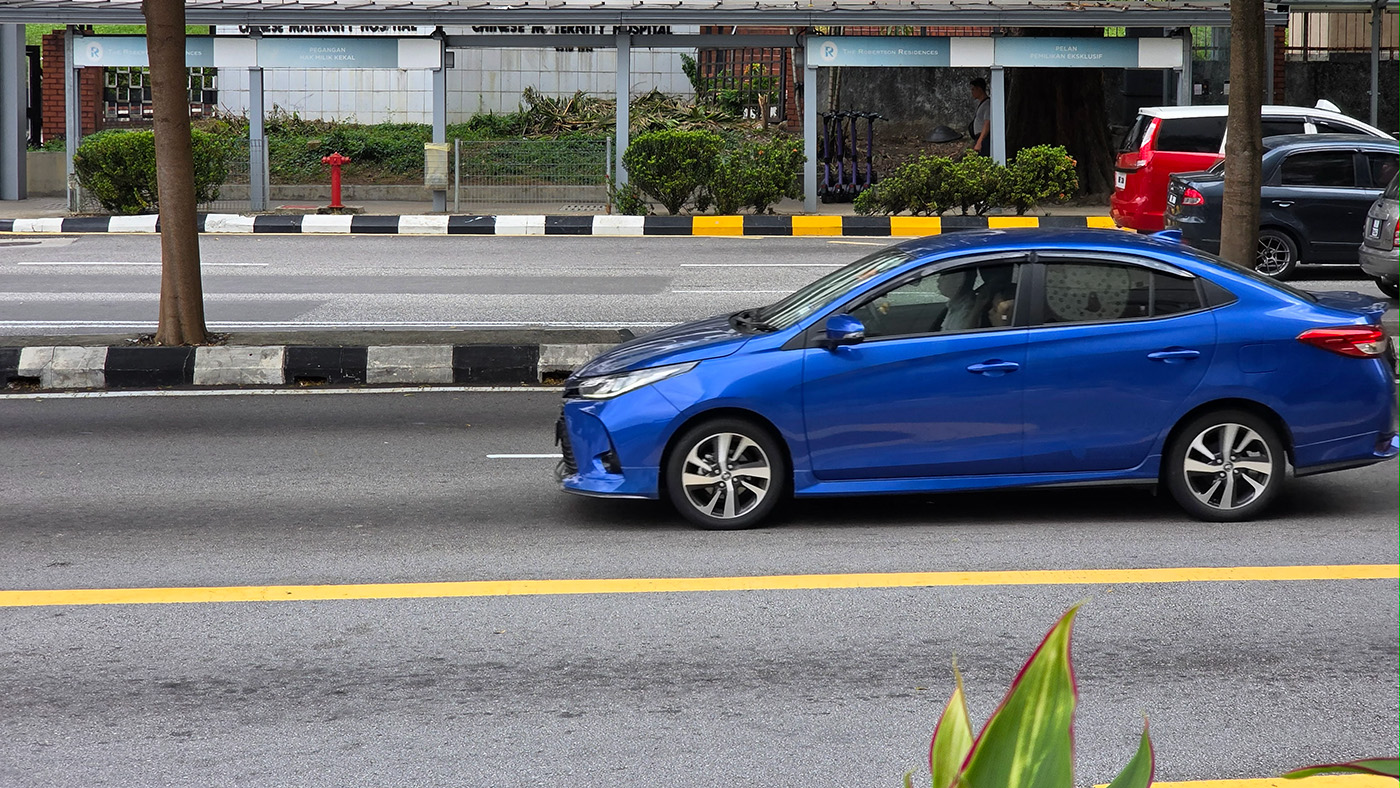
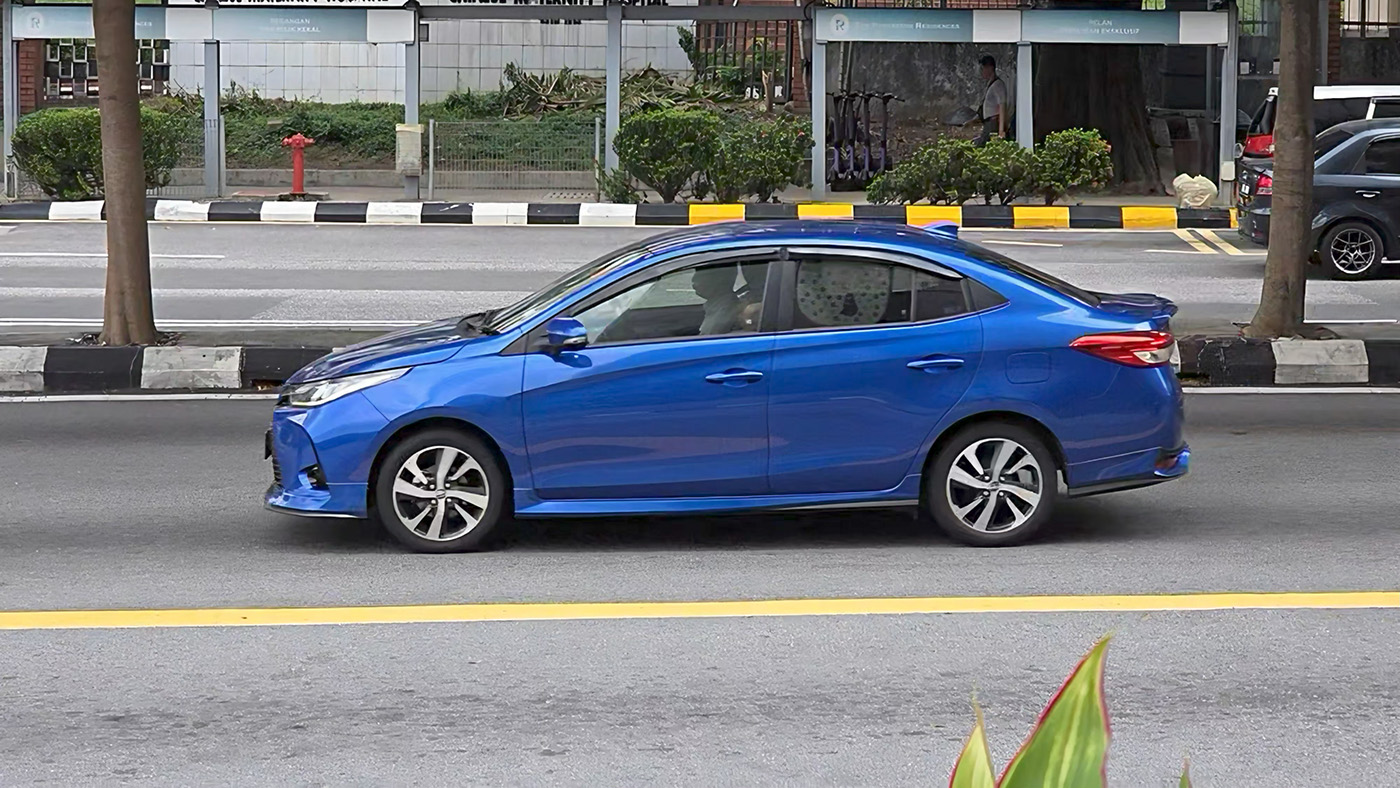
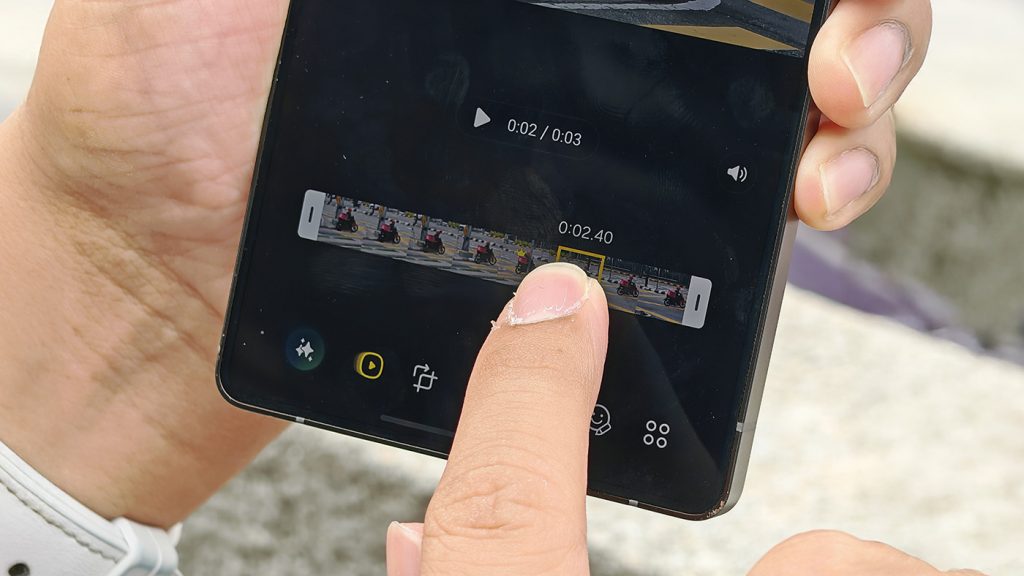
To switch it on, open the Camera app, go to Photo mode, and tap the play-button icon at the top-right corner. When enabled, your camera will capture a few seconds of movement around each shot, allowing you to go back or forward to moments just before or after you pressed the shutter button — perfect for recovering fleeting moments you might have missed.
When viewing your Motion Photo, tap ‘View motion photo’ to play the short clip. To choose the perfect frame, tap the pencil icon at the bottom, press the Motion Photo button with the play icon, and select the image you want as your key photo.
Activate 200MP Mode for “Ultra” Details
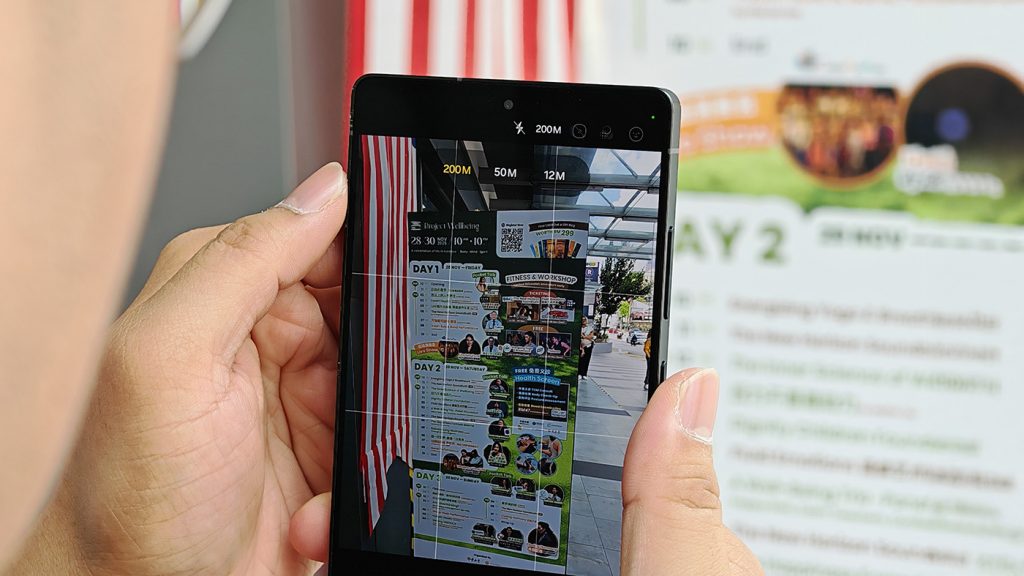
Need to take a quick photo to post online or remember where you parked? The standard 12MP mode is more than enough. But when you’re capturing something full of text, such as a presentation slide or a restaurant menu, or when you’re shooting a picture of the amazing view at Kundasang, Sabah, we would recommend you to switch to 200MP mode to get the maximum amount of detail.
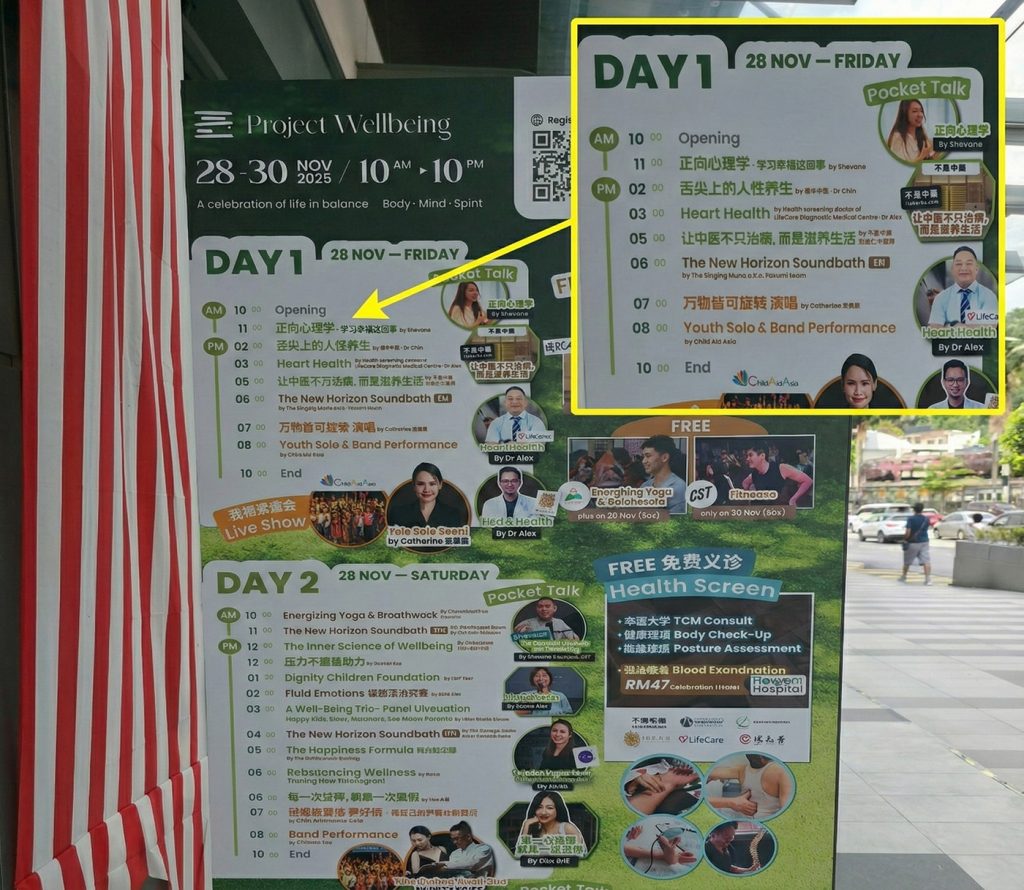
Whether you plan to zoom in later or crop the image for sharing, the photo will stay sharp and crisp – almost as if it were never cropped at all.
Unlock More Controls with Pro & Expert RAW
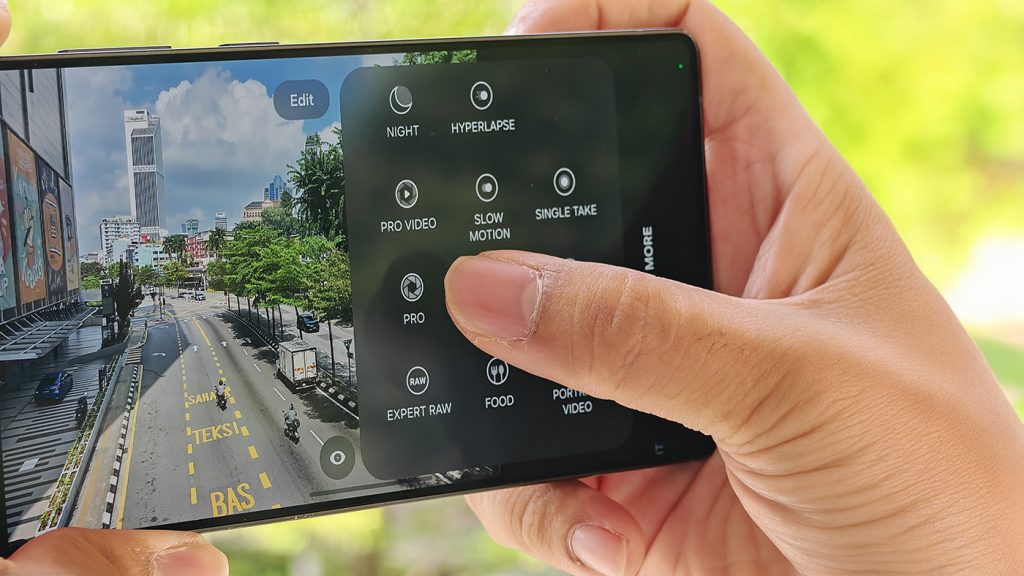
If you want more flexibility with your photos, the Galaxy S25 Ultra’s Pro Mode gives you robust manual options while keeping shooting simple. In Pro Mode, you can manually adjust ISO, shutter speed, white balance, and focus, while tools like zebra exposure highlighting, focus peaking, and built-in histogram help fine-tune each shot.
Exposure compensation (EV) allows precise brightness control, and you can easily switch between auto and manual focus depending on your scene. Pro Mode also supports RAW (DNG) capture alongside JPEG or HEIF, letting you choose between in-camera processing or post-editing flexibility.
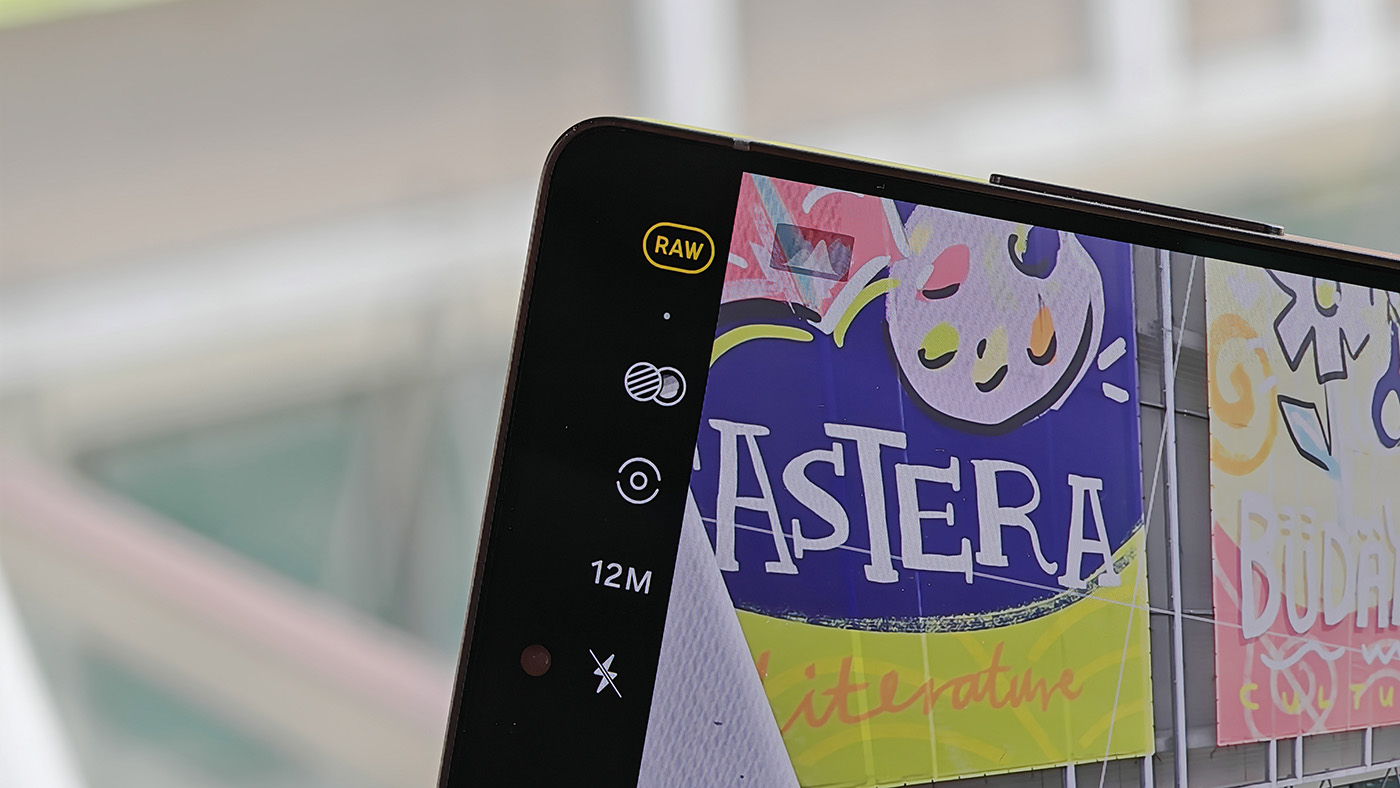
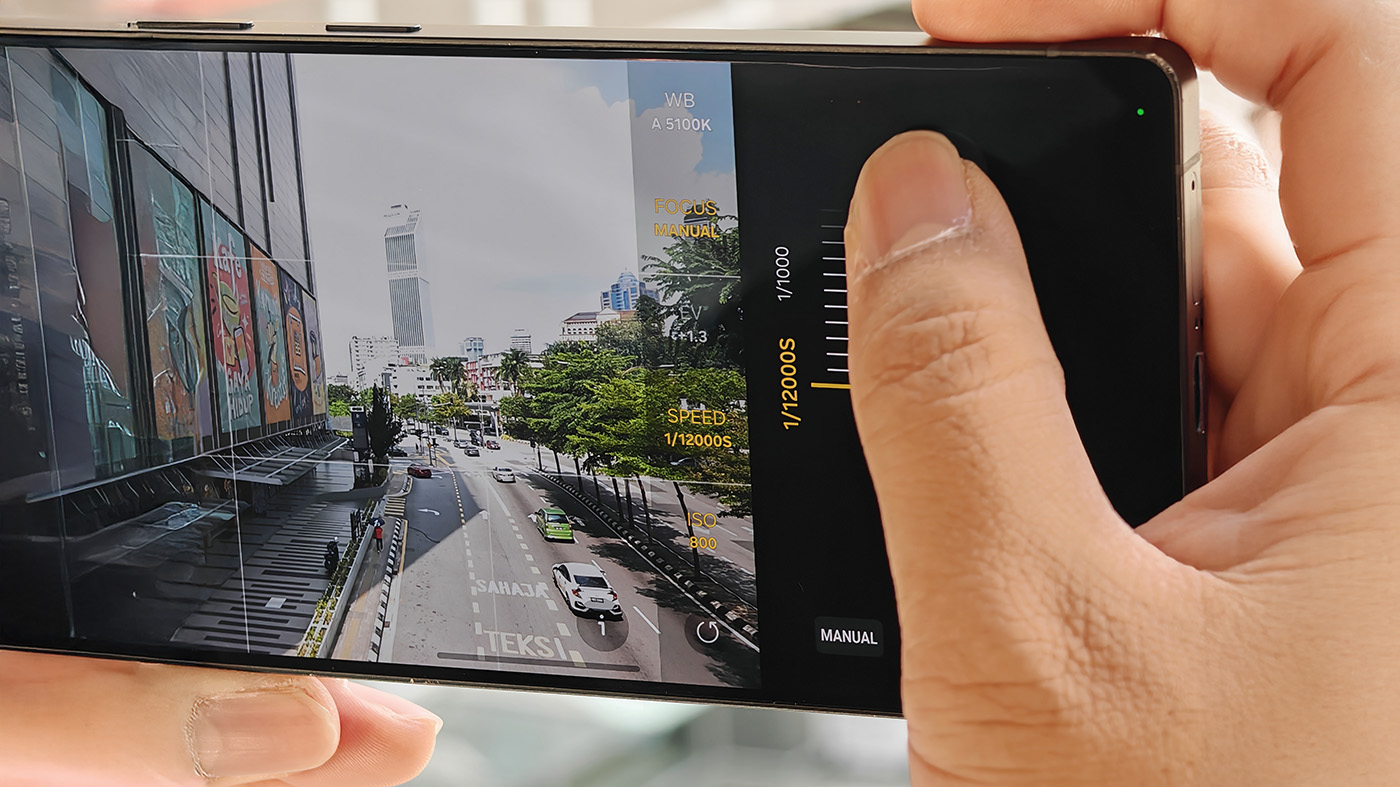
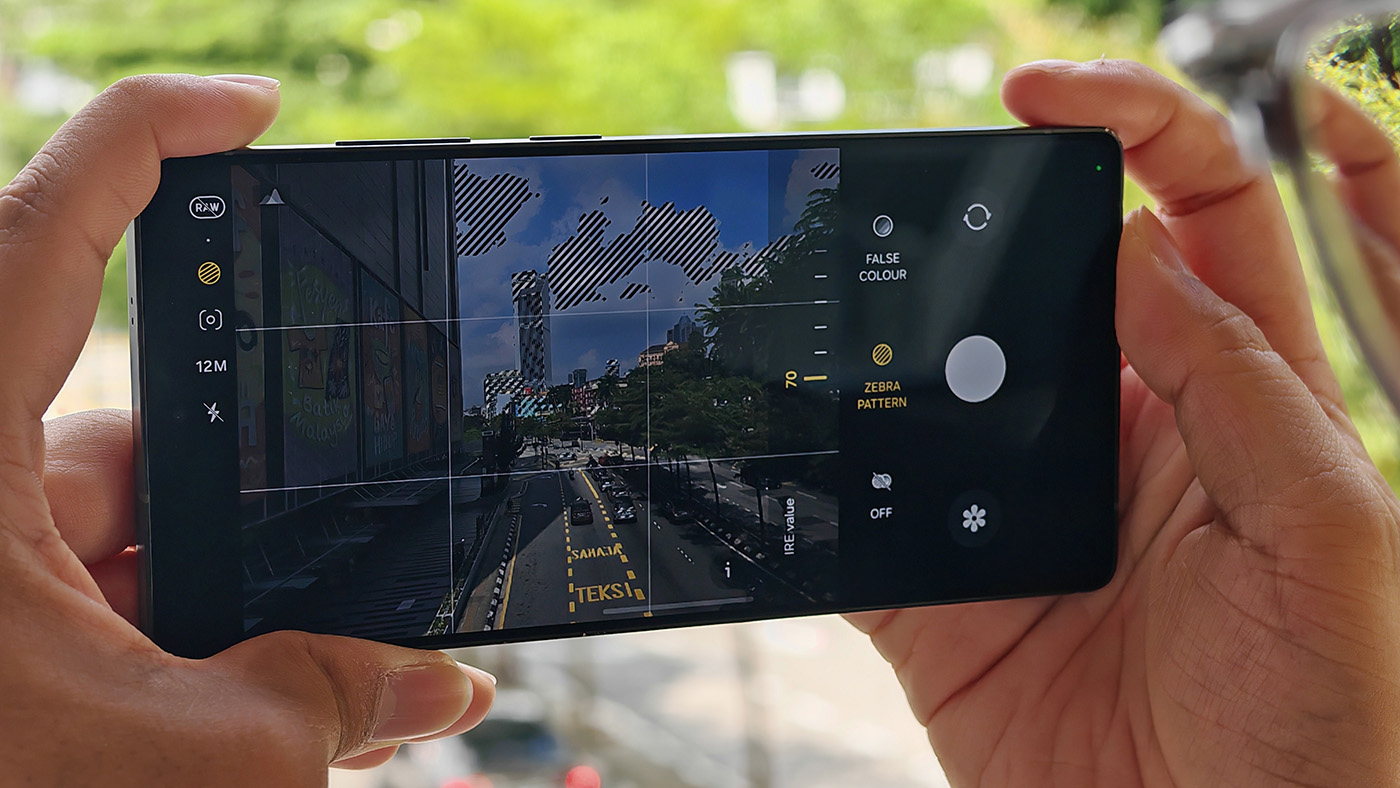
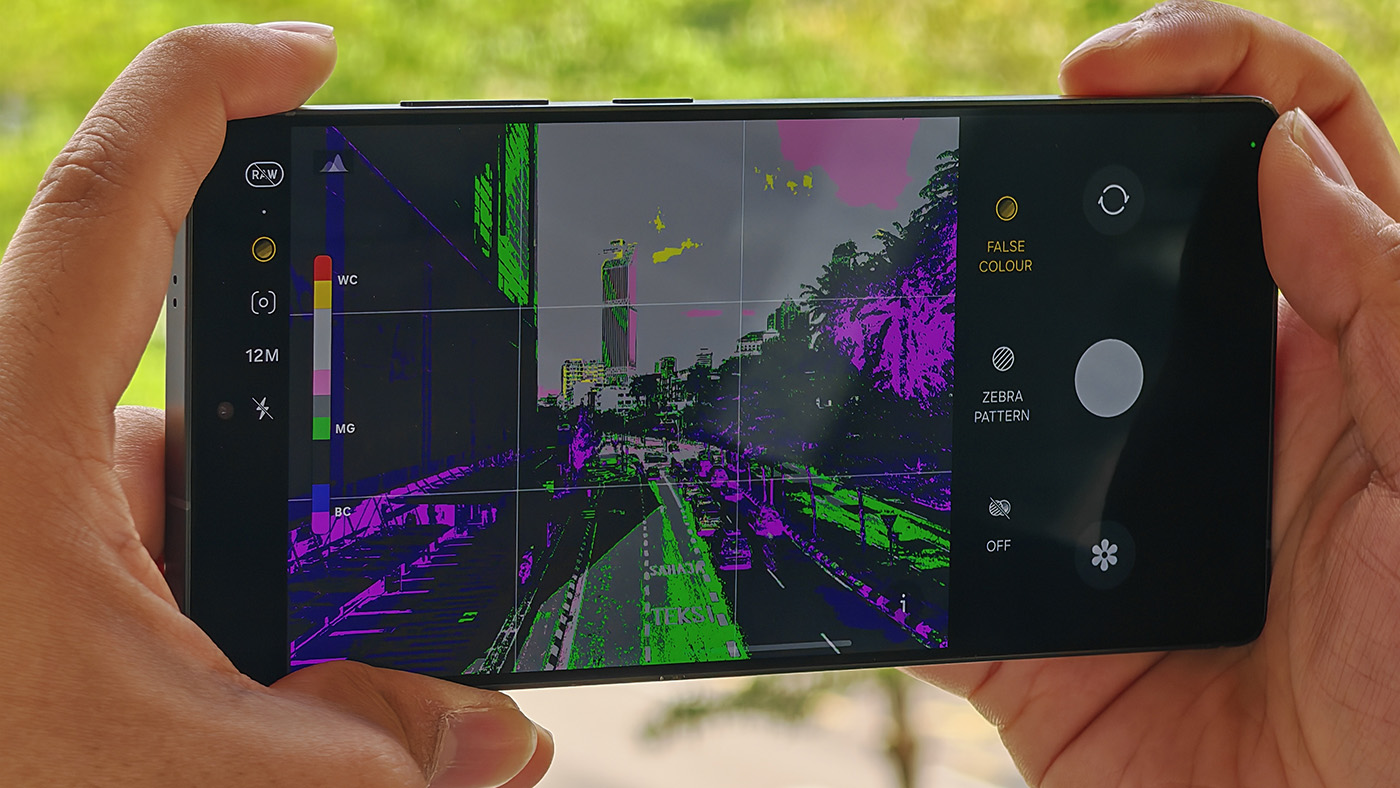
This mode is perfect for photographers who want manual tweaks without fully diving into RAW editing, great for both handheld shots and tripod-assisted long exposures.
For those seeking even more creative freedom, Samsung’s Expert RAW app takes manual photography to the next level. Available from the Galaxy App Store, Expert RAW supports 16-bit RAW (DNG), JPEG, or RAW+JPEG capture, giving you the flexibility for serious post-processing.
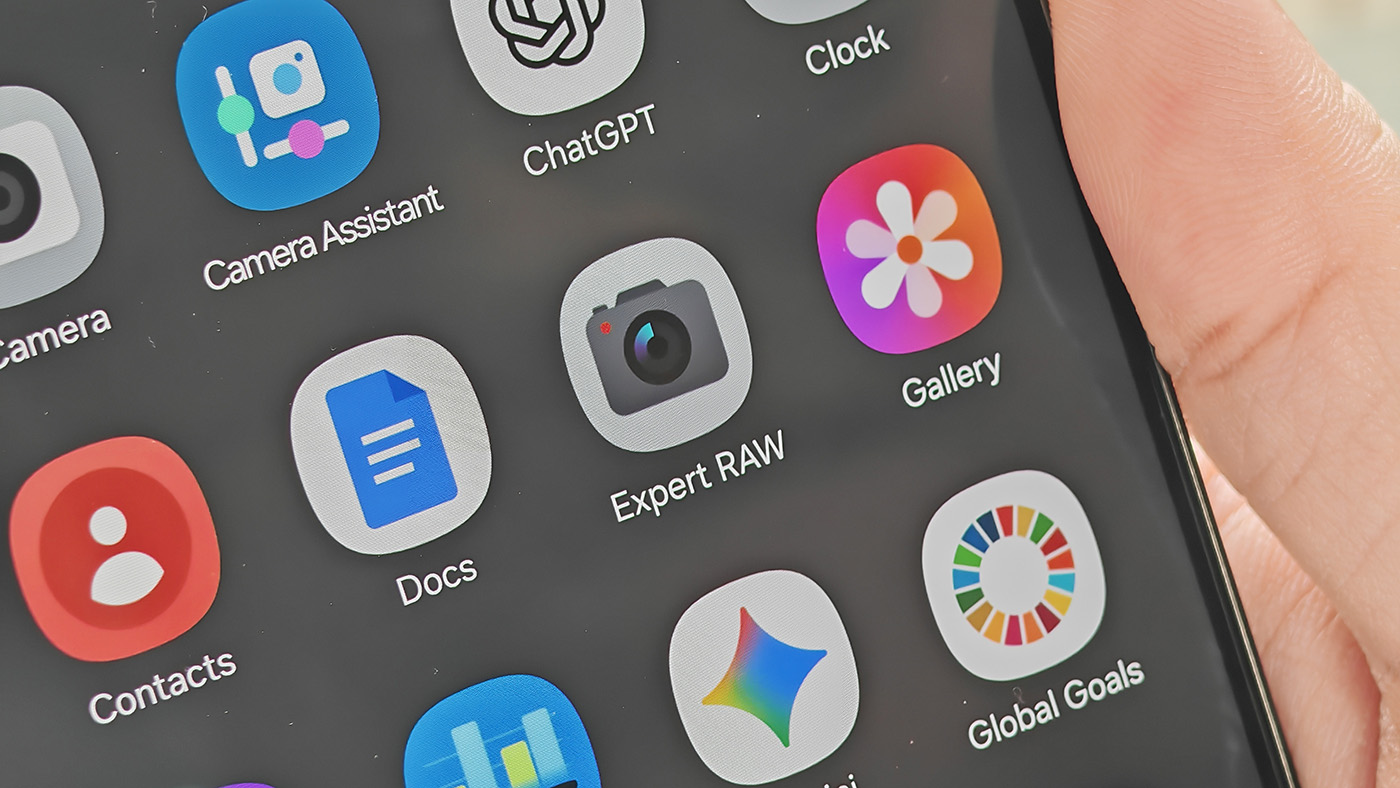
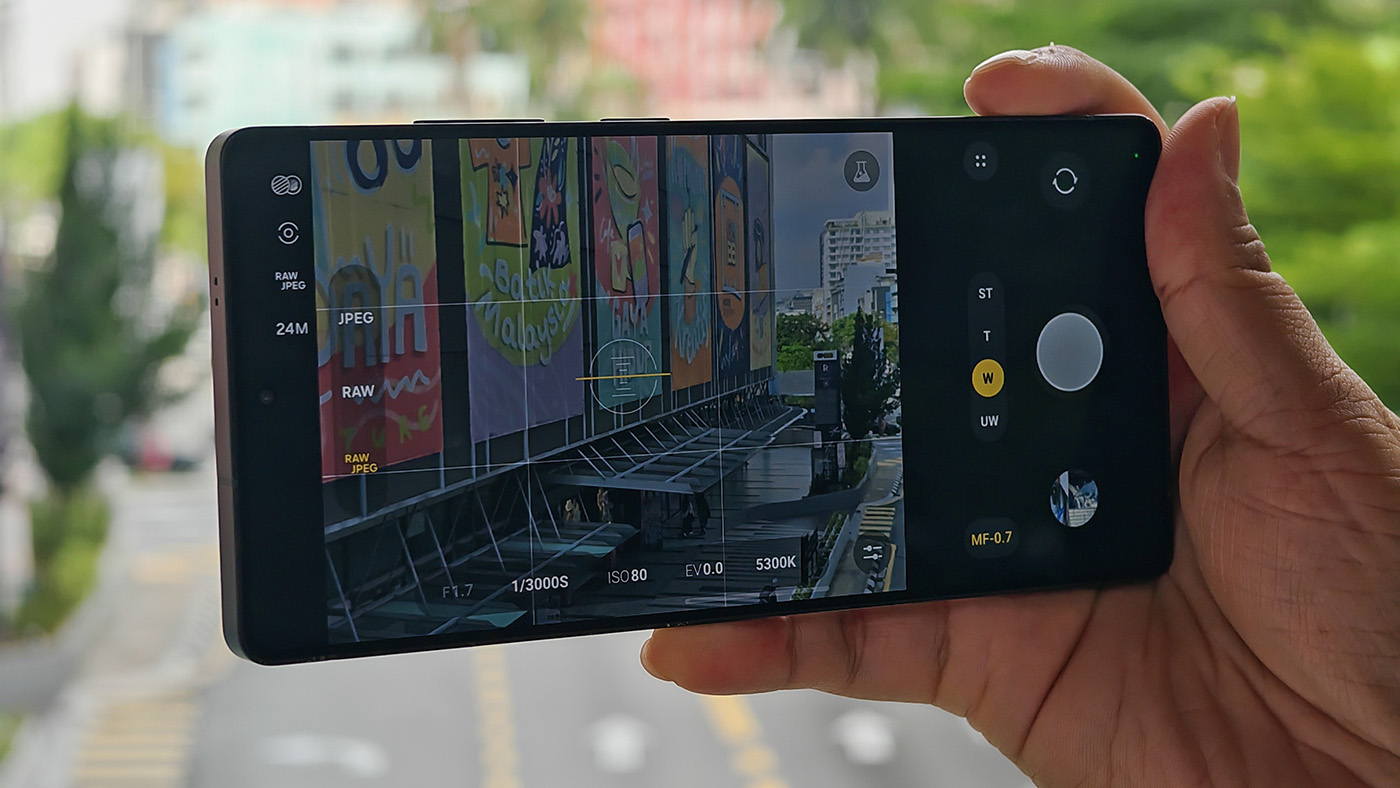
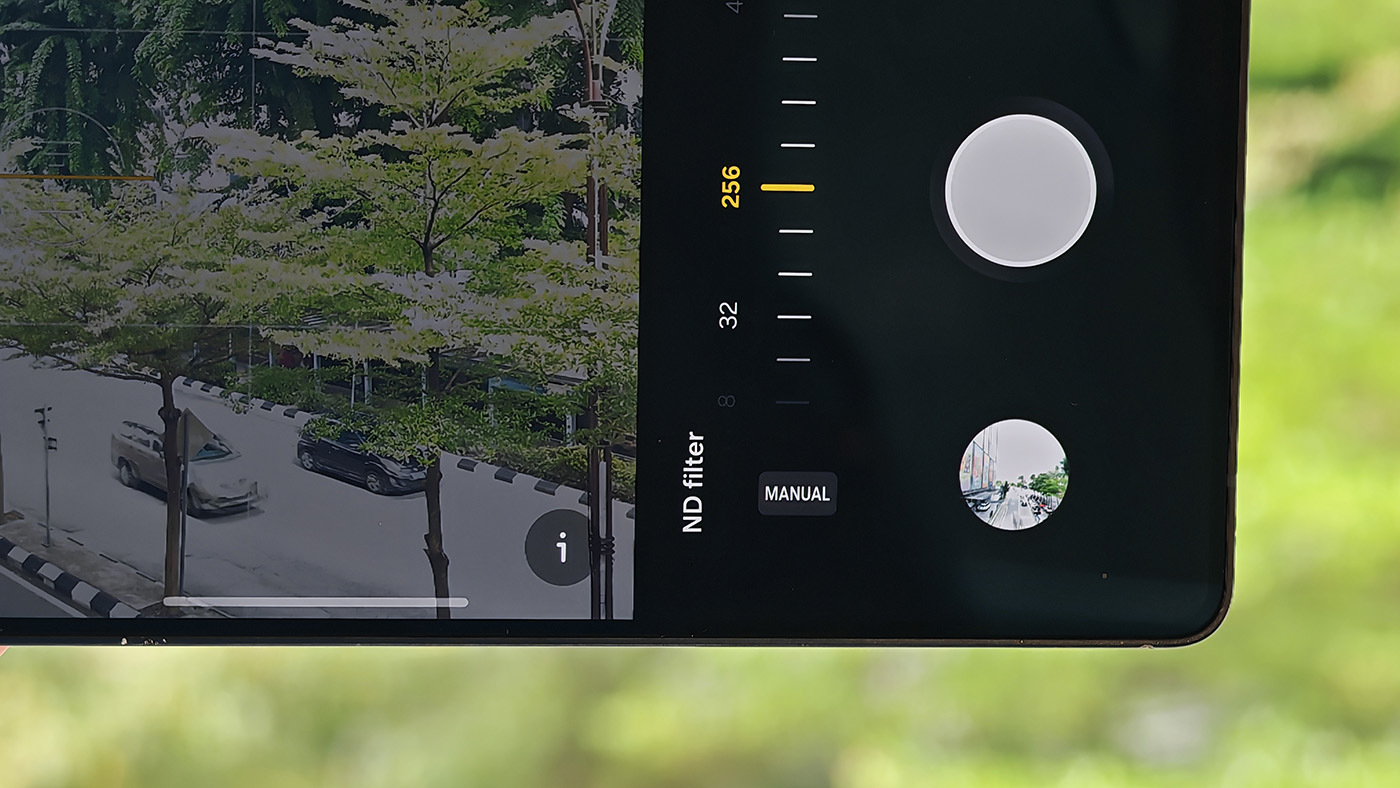
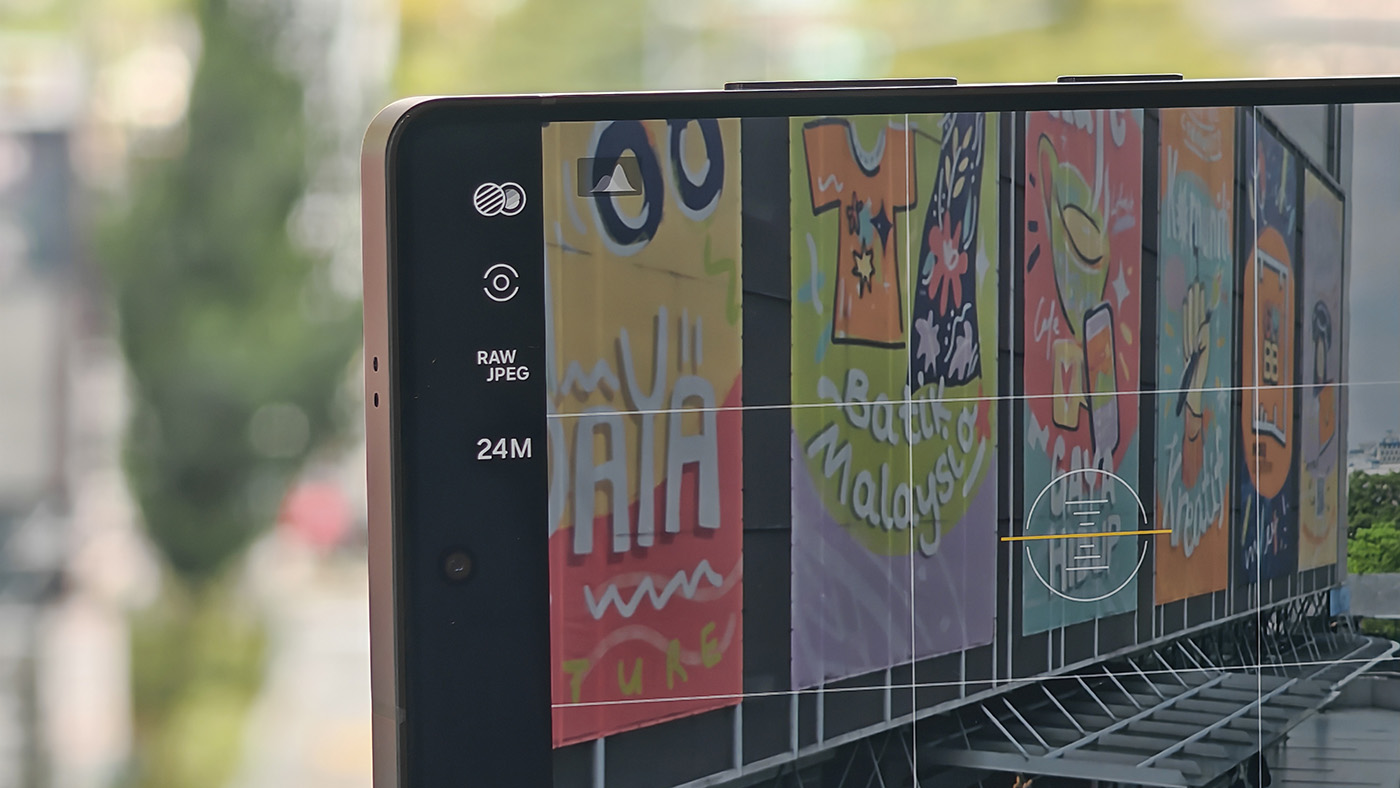
You’ll get full control over aperture, shutter speed, ISO, white balance, exposure levels, and focus, including centre, multi-point, manual, and focus peaking modes. Advanced tools like a virtual ND filter, histogram monitoring, and multi-frame stacking make it ideal for low-light, HDR, and astrophotography.
The minimally processed 16-bit RAW files give maximum editing headroom, making this mode perfect for enthusiasts and professionals who want the highest image quality and complete creative control.
Because Expert RAW’s 16-bit RAW files are minimally processed, they give you the maximum editing headroom — perfect for enthusiasts and professionals who want the best image quality and full creative freedom.
Great Photo Ruined by Photobombers? Galaxy AI’s Got Your Back
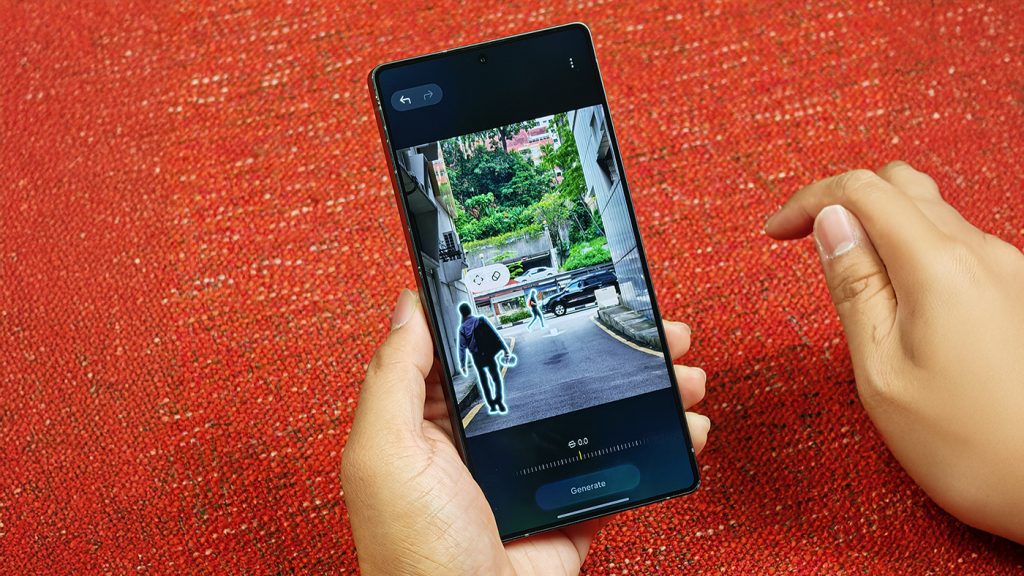
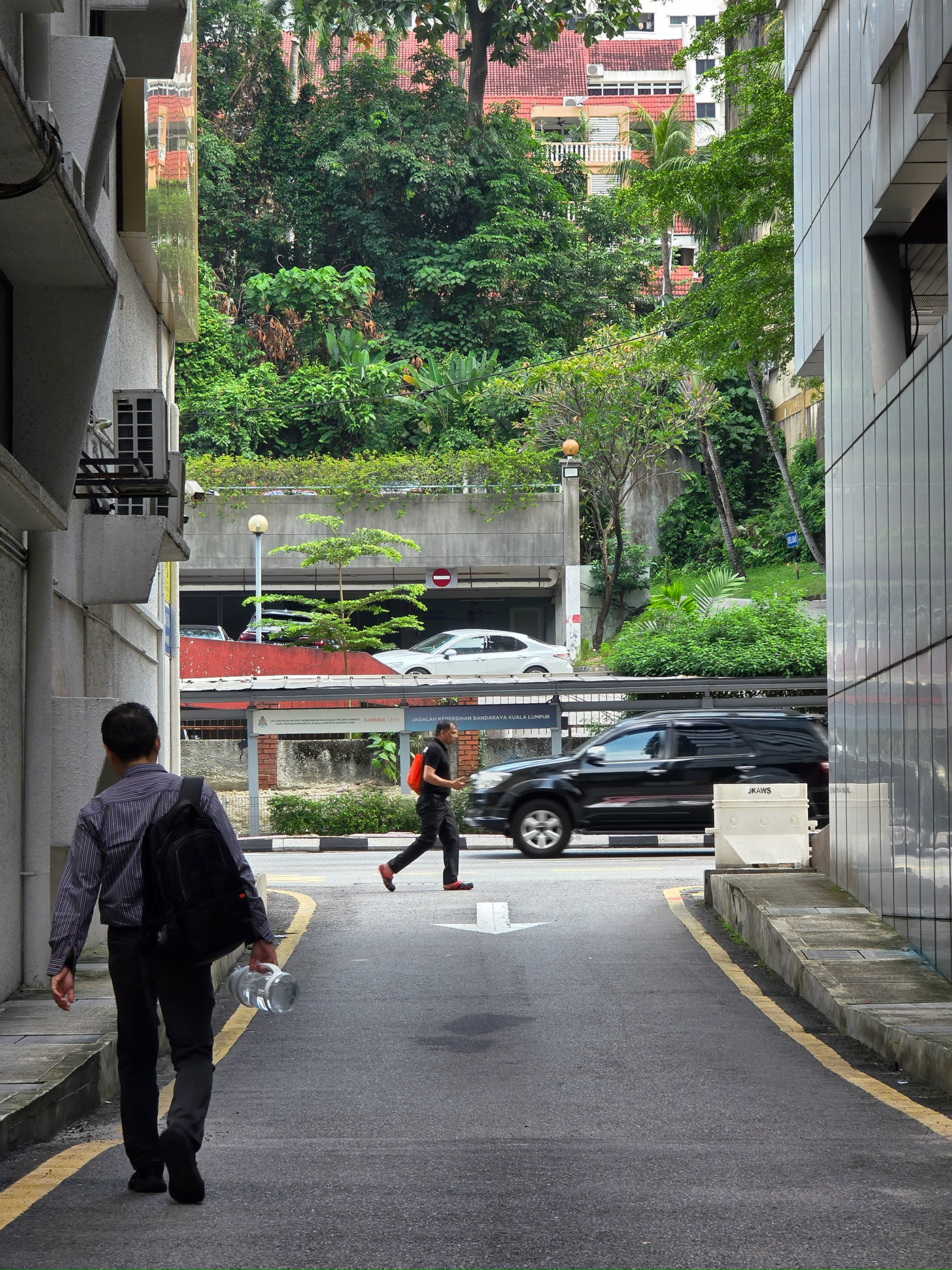
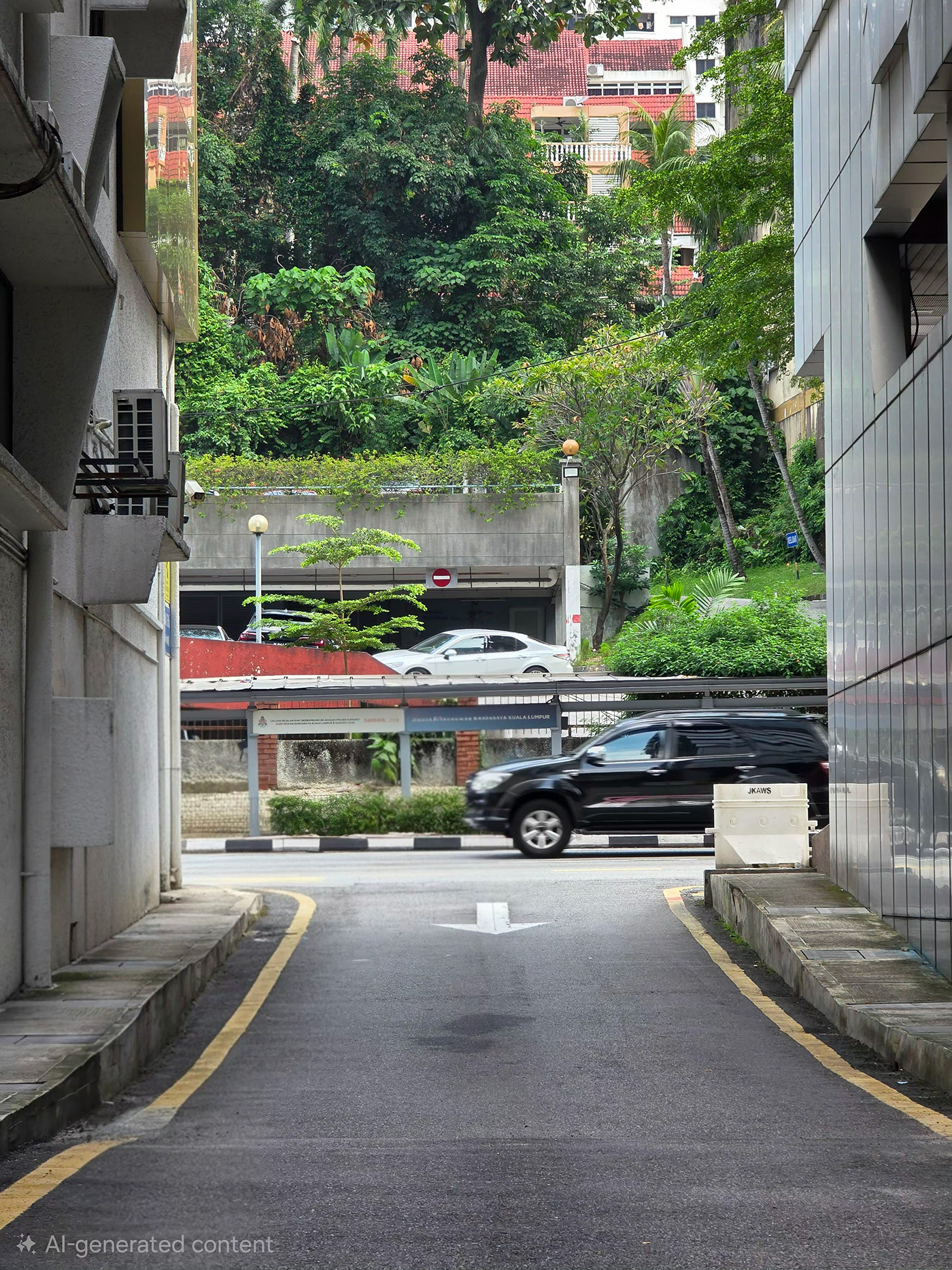
Took the perfect shot, only to realise a photobomber ruined it? Galaxy AI can easily “reverse” the damage using Object Eraser.
Just tap the Galaxy AI icon, circle the object(s) you want to remove, then tap Generate and watch the magic happen.
It’s Not Just the Gear, But Also the Operator Behind It
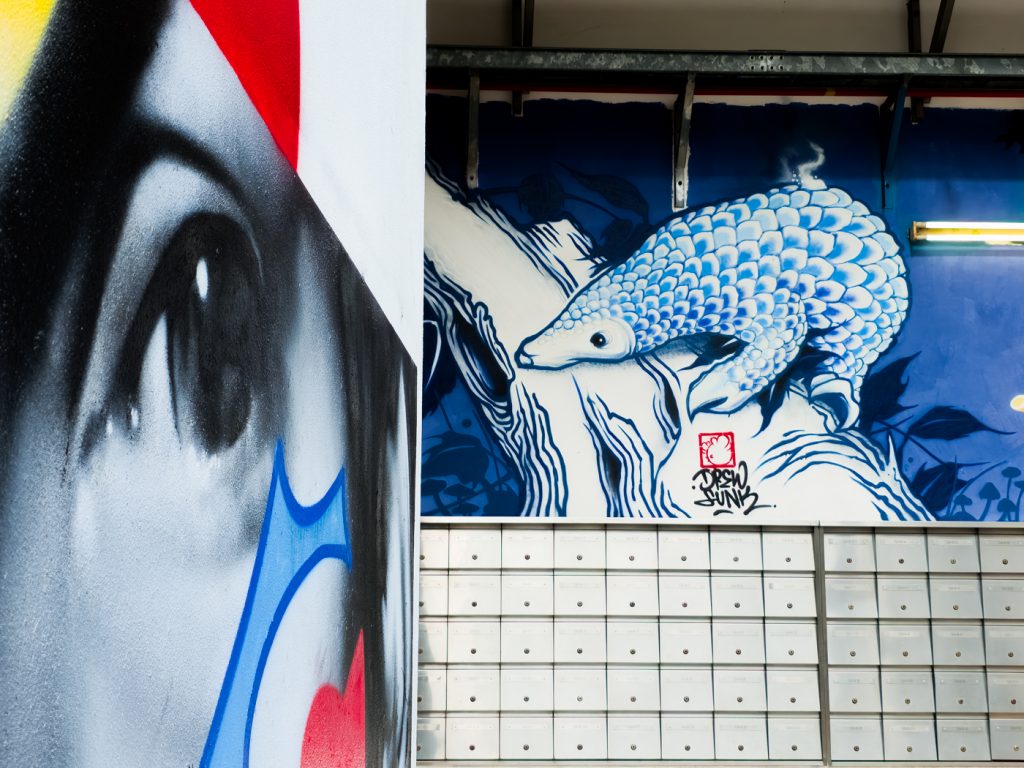
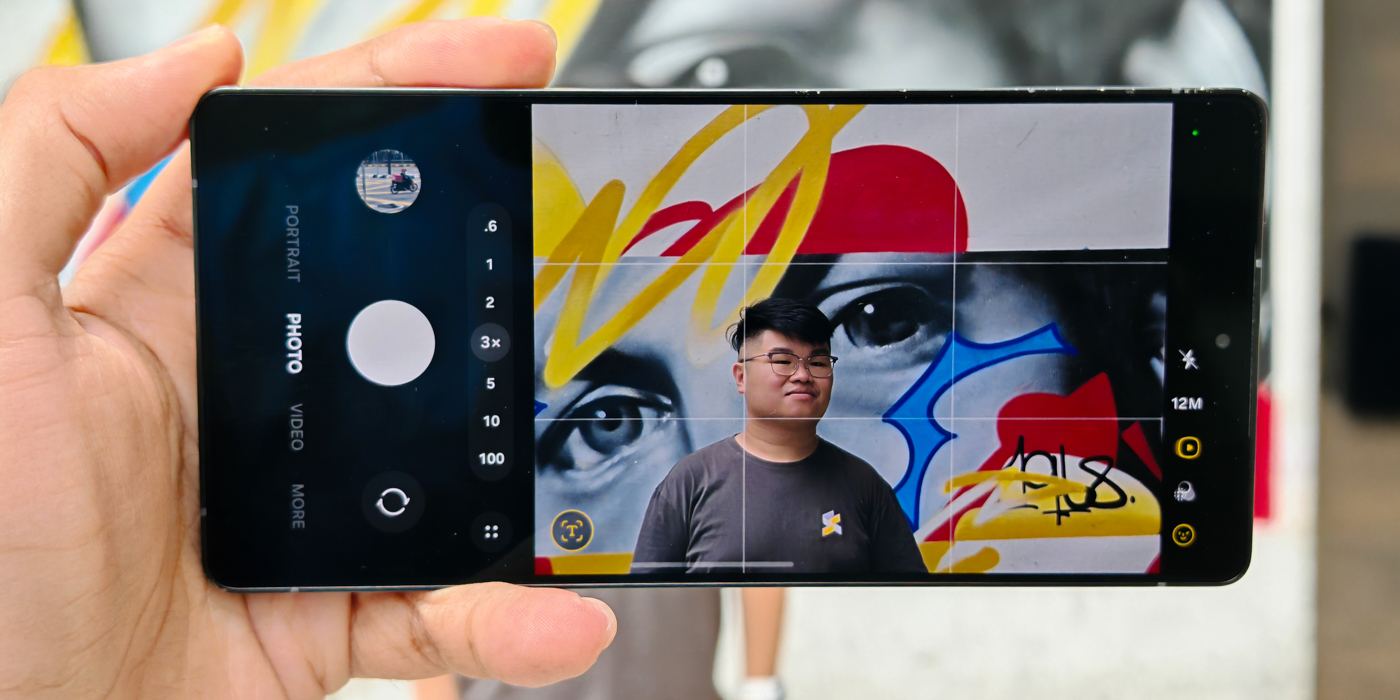
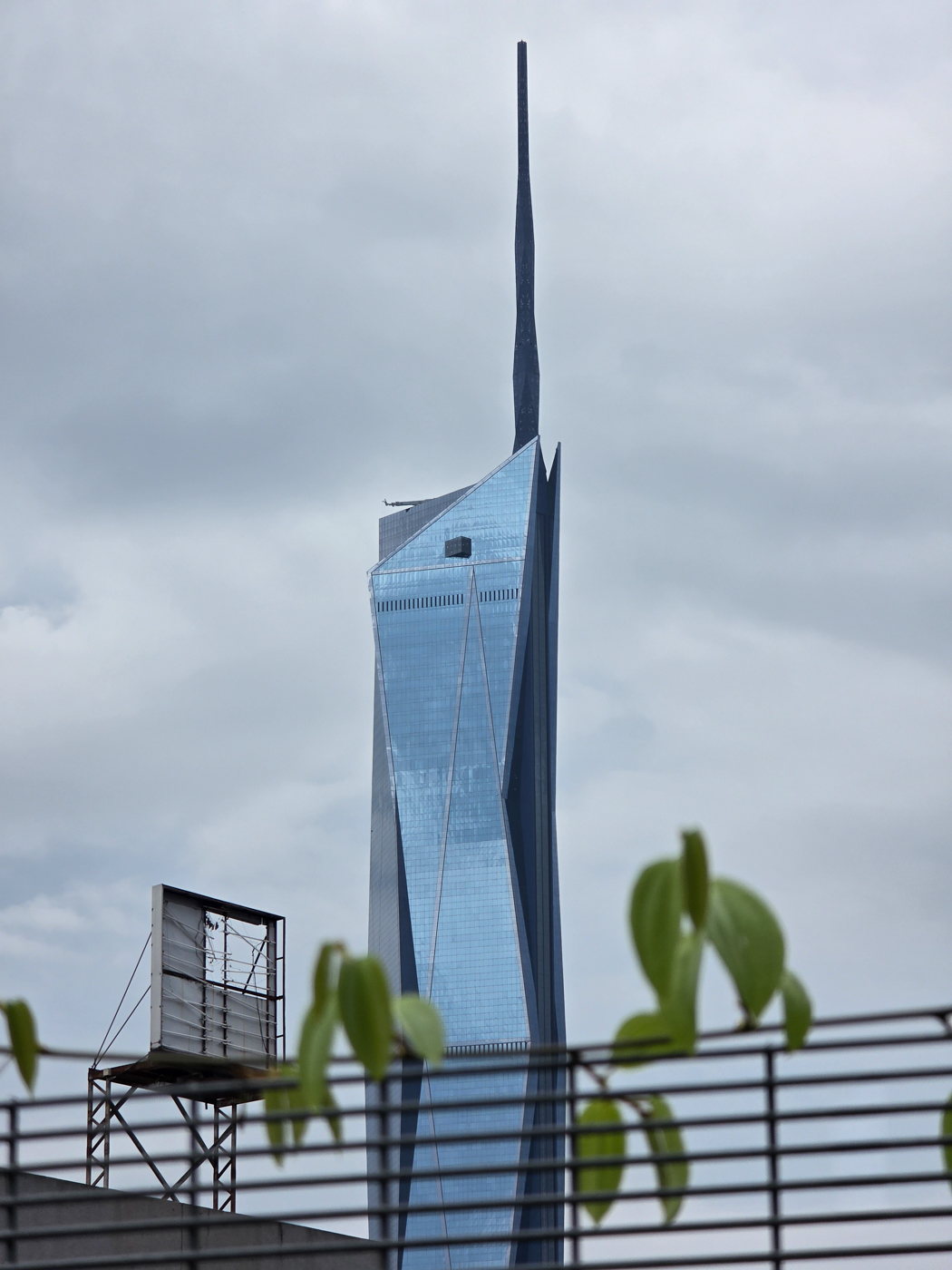
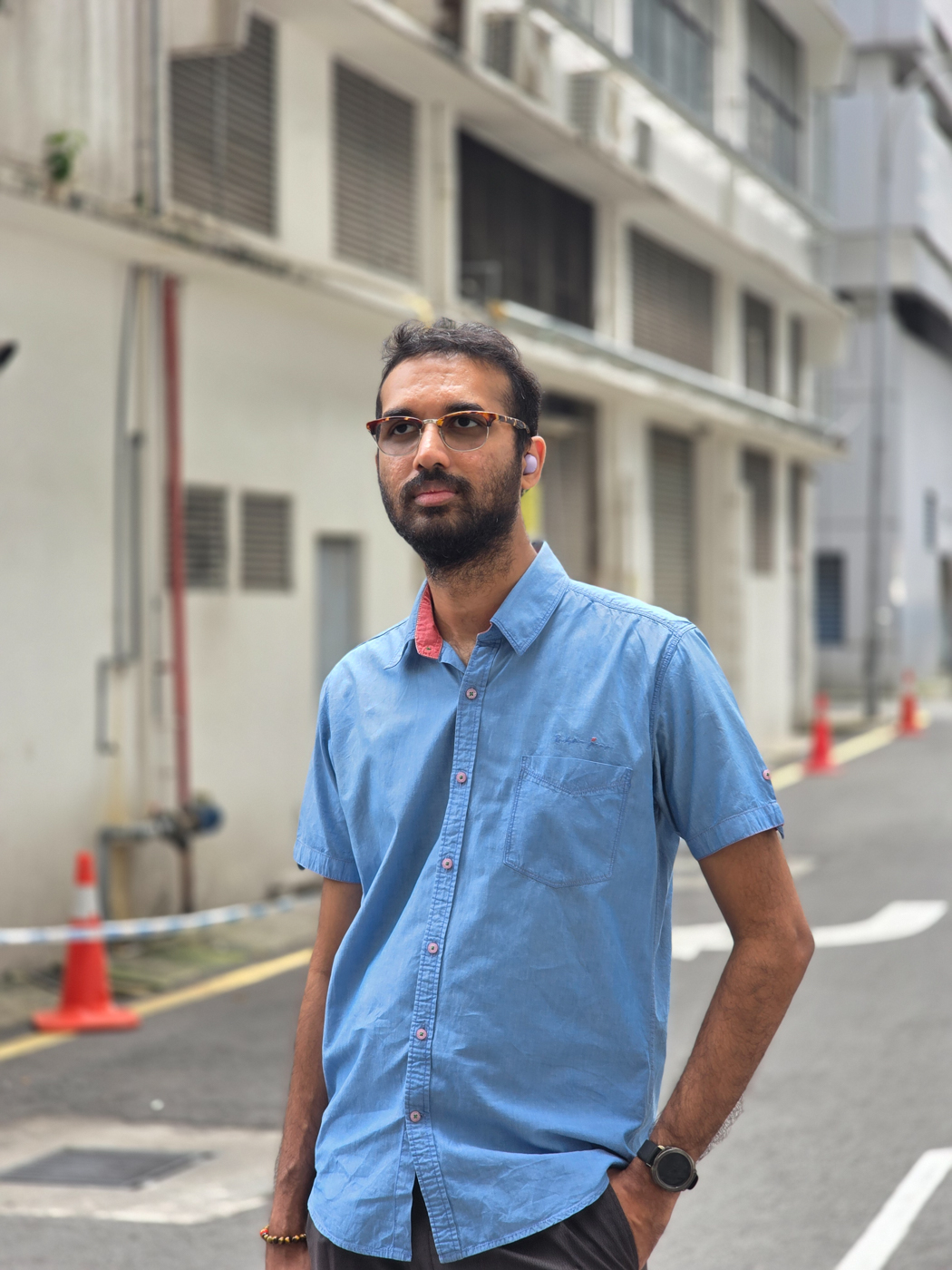
Creating great photos is not just about the gear you have, but also your eye for framing and capturing the moment. Beyond camera settings, you can improve your shots with basic composition techniques like the rule of thirds and leading lines — simple yet powerful ways to make your photos look more professional.
Whether you’re exploring the streets of KL for architecture shots or capturing portraits of people, mastering these techniques will help your photos stand out and look effortlessly polished.

For more information on the Samsung Galaxy S25 Series, do check out Samsung Malaysia’s official website.